

When creating Google Ads, you’ll need to add descriptions to your ads. But how many can you actually add, and how many should you add?
Descriptions play an important role in your ads. While headlines grab attention, descriptions help convince someone to click and learn more about your business.
In this guide, I’ll explain how many descriptions Google Ads allows, what descriptions are used for, and what you should actually put in them to improve performance.
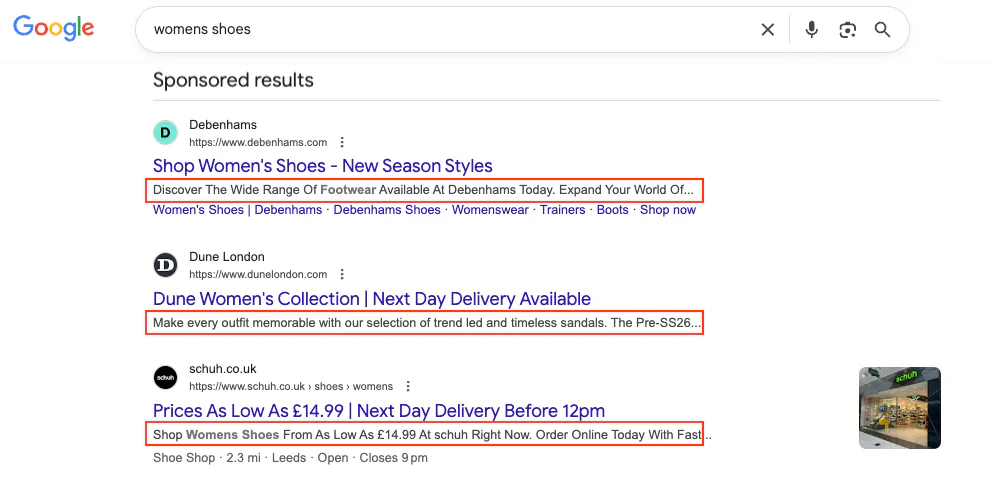
What Is a Google Ads Description?
A Google Ads description is the part of your ad where you can explain what you are offering in more detail.
This is different from headlines. Headlines act more like titles. They are designed to grab attention and quickly show what the ad is about.
Descriptions, on the other hand, allow you to expand on that message. They help the user decide whether they want to click on your ad or not.
Descriptions are useful because they allow you to include information that doesn’t fit into the shorter headline fields.
This could include things such as:
More details about your service
Specific benefits for customers
Unique selling points
Offers or guarantees
Essentially, descriptions help move someone from interest to action.
How Many Descriptions Can I Add?
When it comes to adding Google Ads descriptions, the number you can use depends on the type of campaign or ad format you are using.
The two main campaign types where descriptions are used heavily are Search ads and Performance Max (PMax) campaigns.
Want to see how your descriptions could appear alongside different headlines? Try my free responsive search ad preview tool before adding them to your campaign.
Search Ads
With standard Google Search ads (Responsive Search Ads), you can add:
Up to 4 descriptions
Minimum of 2 descriptions required
Google will automatically test combinations of headlines and descriptions to determine which performs best.
Not every description will show every time your ad appears. Google rotates them depending on performance and available space.
Performance Max Campaigns
Performance Max campaigns allow slightly more flexibility.
You can add:
Up to 5 descriptions
These are used across multiple placements within Google’s network, including:
Search
Display
YouTube
Gmail
Discover
This is not to be confused with long headlines, which are separate assets used for certain placements where more text is needed.
What Should You Put in Your Descriptions?
It’s easy enough to add a description, but the real question is what actually works best.
Descriptions should give users a reason to choose your business over others.
There are a few things I recommend including.
1. Clearly Explain What You Offer
First of all, make sure your description clearly explains what your business does.
Many advertisers use this space to add extra details about their services.
For example, I’m a PPC freelancer, so my descriptions might mention things like:
Google Ads management
Meta Ads management
PPC strategy or optimisation
This helps users quickly understand exactly what they’ll get if they click.
2. Highlight Your Unique Selling Points
Google Ads can be very competitive. Often, several businesses are bidding on the same keywords.
This makes it important to highlight what makes you different.
Your descriptions are a great place to include USPs such as:
Free consultations
No long-term contracts
Fixed pricing
Years of experience
Fast turnaround times
Anything that makes your offer more appealing can help increase clicks.
3. Mention Offers or Incentives
If you have any offers or incentives, descriptions are a great place to include them.
For example:
Free audits
Discounts
Limited-time offers
Free quotes
Small incentives can sometimes make the difference between someone clicking your ad or a competitor’s.
Do You Need to Max Out Descriptions?
A common question I get is whether you should always add the maximum number of descriptions.
The simple answer is no, you don’t have to.
Sometimes adding too many descriptions can just complicate things.
In many cases, the minimum number is perfectly fine.
What I usually recommend is creating two strong description types, for example:
USP-focused description
Highlighting what makes your business different.Service-focused description
Clearly explaining what you offer.
Google will normally favour the description that gets the best results, such as higher click-through rates.
Keeping things simple but effective is usually the best approach.
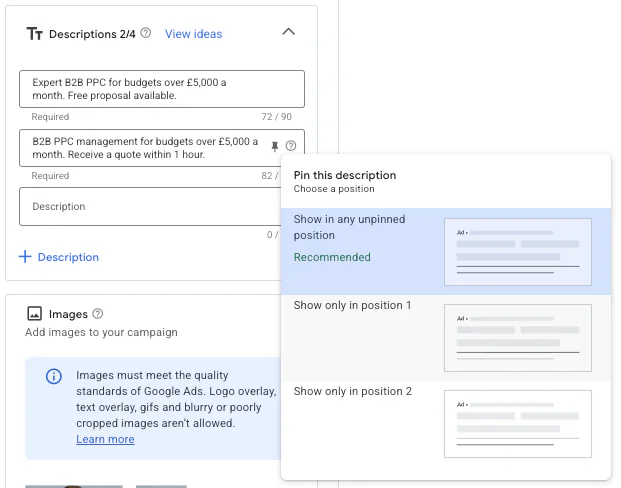
What Does Pinning Descriptions Do?
Google Ads also allows you to pin descriptions.
Pinning means you can tell Google where a specific description should appear when your ad is shown.
For example, you can choose to place a description in:
Position 1
Position 2
This makes it far more likely that a specific description will appear in that position.
Pinning can be useful in situations such as:
When you want a specific message to always appear
When highlighting a key USP
When running A/B tests
For example, you could test two ads with slightly different descriptions to see which generates better:
Click-through rates
Conversion rates
However, it’s worth noting that too much pinning can reduce Google’s ability to test combinations, which may limit optimisation.
Conclusion
Google Ads descriptions are a small part of your ads, but they play a big role in convincing users to click.
To summarise:
Search ads allow up to 4 descriptions (minimum of 2)
Performance Max campaigns allow up to 5 descriptions
Descriptions help explain your offer and highlight your advantages
Focus on clear messaging, USPs, and incentives
You don’t always need to max out the number of descriptions
Pinning can be useful if you want specific messages to appear
When used properly, descriptions can significantly improve the performance of your ads by helping potential customers choose your business over competitors.
If you're interested in professional PPC management to grow your business, feel free to get in touch via my contact page at jonnyswiftppc.com/contact. I'd be happy to discuss how PPC can work for you.