

If you’ve ever built a really solid ad group in Google Ads, you’ll know the feeling. Everything is structured properly, keywords are tightly themed, ads are aligned, extensions are in place.
Now imagine having to rebuild that from scratch just to test a variation.
The good news is you don’t have to.
If you’ve created a model ad group that performs well, you can duplicate it in Google Ads in seconds and then tweak elements like keywords, ads, or targeting without starting again. In this guide, I’ll show you exactly how to duplicate an ad group quickly using Google Ads’ built-in copy and paste feature.
Why Duplicate an Ad Group in Google Ads?
Before we get into the steps, it’s worth understanding when this makes sense.
In my experience managing Google Ads accounts, duplicating ad groups is useful when:
You want to target a slightly different keyword theme
You’re testing match types
You’re launching the same structure in a different campaign
You’ve built a high-performing template and want consistency
You’re expanding into another location or service variation
Instead of rebuilding everything manually, duplicating saves time and reduces mistakes.
It also keeps structure consistent, which is important for performance and reporting clarity.
Step-by-Step: How to Duplicate an Ad Group in Google Ads
Here’s exactly how to do it. It’s genuinely very simple once you know where to click.
1. Go to Your Campaign
Log into your Google Ads account and:
Navigate to the campaign that contains the ad group you want to duplicate
Click into that campaign
Select “Ad groups” from the left-hand menu
You should now see a list of your ad groups.
2. Select the Ad Group You Want to Copy
Find the ad group you want to duplicate.
Tick the checkbox next to it
Make sure you’ve selected the correct one
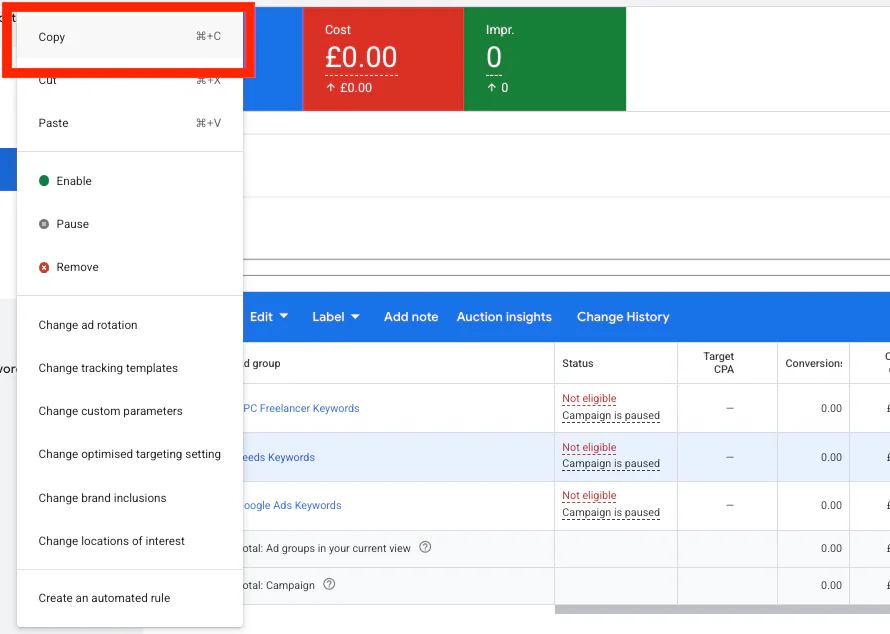
3. Click Edit and Copy
With the ad group selected:
Click “Edit”
Then click “Copy”
That’s it for this part.
4. Click Paste
Now close the selection panel.
Near the filters area at the top of the screen, you’ll see a “Paste” option appear.
Click “Paste”
Choose the campaign where you want to paste the duplicated ad group
You can paste it into the same campaign or a different one.

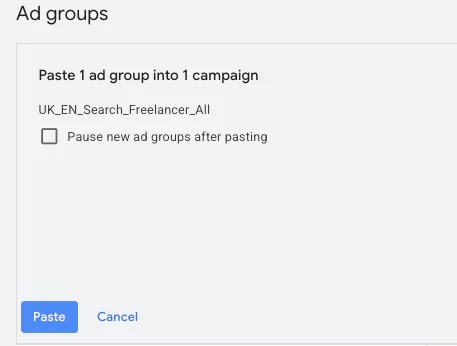
5. Choose Your Settings and Confirm
You’ll now see an option that says:
Pause new ad groups after pasting
You can:
Tick this if you want to review it before it goes live
Leave it unticked if you want it enabled straight away
Then simply click “Paste”.
And that’s it. You now have a duplicate ad group.
What Happens After You Duplicate?
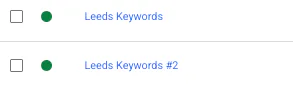
Once pasted, the new ad group will appear in your list.
It will usually have the same name as the original, but with a number added at the end, for example:
“Plumber London”
“Plumber London (2)”
“Plumber London (3)”
From here, you can:
Adjust the keywords
Edit ad copy
Change URLs
Modify targeting
Refine bidding
This is where you tailor it to your new test or variation.
Best Practice When Duplicating Ad Groups
Just because you can duplicate quickly doesn’t mean you should blindly replicate everything.
I recommend:
Reviewing keyword intent carefully
Making sure ads match the new theme
Checking landing page relevance
Renaming the ad group clearly
Pausing it initially if you want to double-check settings
Efficiency is great, but relevance and structure still matter more.
Conclusion
It’s really simple to duplicate an ad group in Google Ads.
All you need to do is:
Select the ad group
Click Edit
Click Copy
Click Paste
Confirm your settings
If you’ve built a strong existing template, this method helps you create new ads much quicker while keeping your account structure consistent.
Used properly, it’s a simple time-saving feature that makes campaign management far more efficient.
If you're interested in professional PPC management to grow your business, feel free to get in touch via my contact page at jonnyswiftppc.com/contact. I'd be happy to discuss how PPC can work for you.