How to Exclude Locations on Google Ads
One of the key things in Google Ads is getting your locations right.
You may want to target a specific country, for example the United Kingdom, but your ads may not be suitable for a specific region. The Highlands may be too far away for you to deliver, or Northern Ireland may be giving your business logistical challenges.
In this post, I’m going to tell you how to exclude locations to avoid your ads going to the wrong audience.
Excluding Locations on Campaigns
To exclude locations on your campaigns, do the following:
Go to your Google Ads campaigns.
Click on Edit settings on your selected campaign (the cog wheel).
Scroll down to Locations.
Rather than selecting the entire country, select Enter another location.
Click on Advanced search.
Search for the locations that you want to include or exclude.
Click Save.
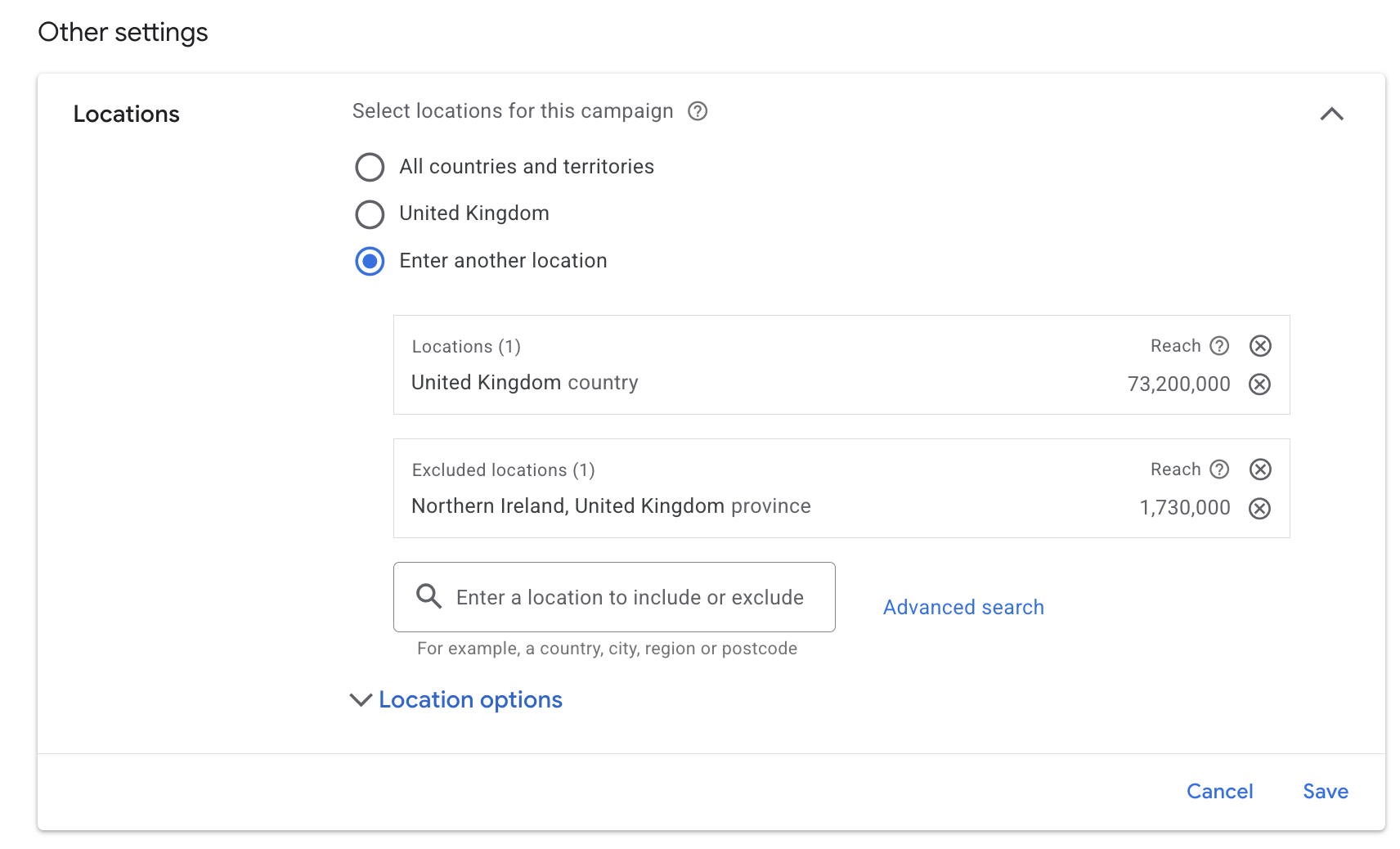
Once you’ve done this, you should see your included and excluded locations for the ad campaign like so:
Google Ads Locations FAQs
Can I exclude locations at account level?
As of late 2025, there is no method of excluding locations at the account level. This must be done within the campaign settings, as instructed in this blog post.
Why should I exclude locations?
It could be for numerous reasons, such as:
The location is too expensive to send your product to
Political reasons
Your ad campaign may not be performing well in these regions
Language differences
Noticeable spam from this region
The region is overly competitive
Should I select Presence or Interest, or Presence?
I strongly recommend selecting Presence only. This is because Presence or Interest may show your ads to users who are not currently located in your target area.
Google itself may recommend Presence or Interest to stretch your budget further, but this usually isn’t necessary.