

If you've recently set up Google Ads conversion tracking, you're probably wondering whether it's actually working.
Perhaps you've added a conversion action to track form submissions, phone calls, email clicks or ecommerce purchases, but you're not seeing any data yet. That can leave you questioning whether you've set everything up correctly.
In this guide, I'll show you how to test Google Ads conversion tracking, where to check if it's active, how to use Google Tag Manager to preview conversions before they go live, and how to troubleshoot common issues.
How to Set Up Google Ads Conversion Tracking
Before you can test conversion tracking, you first need to make sure it's been set up correctly.
The first step is adding the Google Tag to your website. Most website platforms, such as Shopify, make this fairly straightforward by allowing you to connect your Google account or install the tag using an app or integration.
Once your Google Tag is installed, it can be used for Google Ads conversion tracking as well as Google Analytics 4 (GA4).
When creating conversions inside Google Ads, I recommend focusing on actions that actually generate business value.
For example, good conversion actions include:
Lead form submissions
Ecommerce purchases
Phone call clicks
Email clicks (where appropriate)
I generally avoid tracking actions such as:
Basket views
Checkout page visits
Other intermediate steps that don't represent a genuine lead or sale
Keeping your conversion tracking focused makes your reporting much more meaningful and helps Google optimise towards actions that matter.
Some conversion setups are relatively simple. For example, if someone lands on a thank you page after submitting a contact form, you can use that page as your conversion trigger.
Ecommerce tracking is also possible, although it's a little more involved because purchase values and transaction data need to be passed correctly.
If you're finding the setup difficult, don't worry. Conversion tracking can become quite technical, especially for ecommerce websites. If needed, it's worth asking an experienced PPC specialist to help. I've personally set up conversion tracking across thousands of Google Ads campaigns over the years.
How to Check if Your Google Ads Conversion Tracking Is Working
Once you've created your conversion action, the easiest way to test it is directly inside Google Ads.
Navigate to:
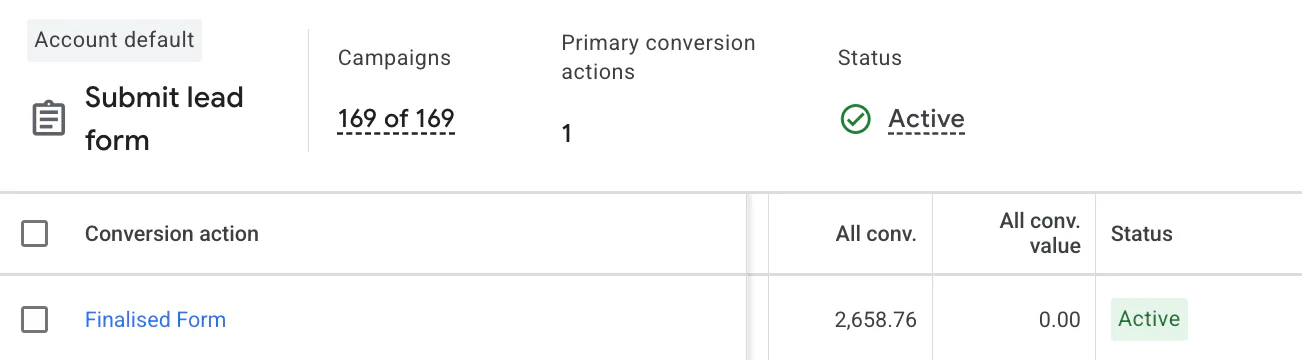
Goals → Summary
Then scroll down until you find the conversion action you're tracking, whether that's purchases, lead form submissions or another conversion you've created.
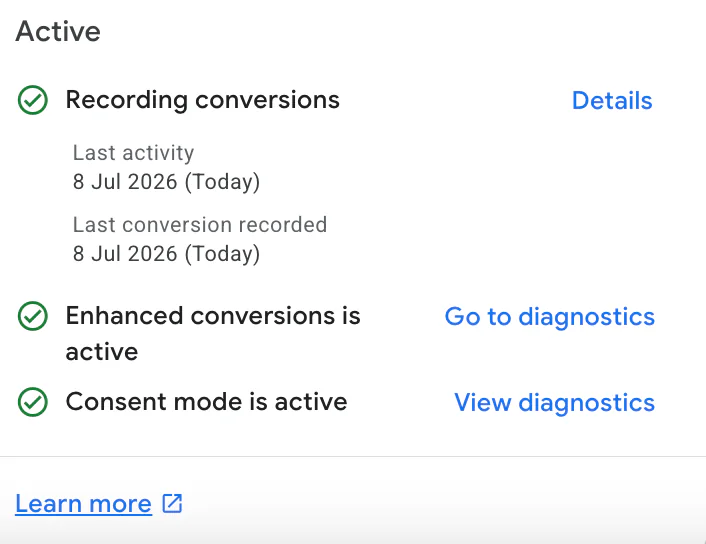
If everything is working correctly, you should see the status showing as Active.
If you've carried out a test, such as submitting a dummy enquiry through your website or completing a test purchase, you should also see:
The conversion status marked as Active
The "Last conversion" date showing today's date (or whenever you completed the test)
Don't worry if the conversion numbers haven't updated immediately, as reporting can sometimes take a little time. The important thing is that the conversion becomes active and registers your test.
Test Your Conversion Tracking with Google Tag Manager
My preferred way to test conversion tracking is using Google Tag Manager.
Although Tag Manager has a learning curve, it includes a Preview mode that lets you see whether your tags are firing before you publish anything live.
This can save a huge amount of time when diagnosing tracking problems.
For example, if you've created a Google Ads conversion that should fire when someone submits a contact form, you can use Preview mode to complete a test submission and immediately see whether the conversion tag has fired successfully.
Being able to confirm everything before publishing gives you much more confidence that your conversion tracking will work correctly once it's live.
I won't cover a full Google Tag Manager tutorial here, as that's a topic on its own, but if you're planning to use Google Ads regularly, it's well worth learning.
Use the Google Ads Troubleshooter
Sometimes you'll notice that your new conversion action displays a Troubleshoot status.
This is fairly common if you've only just published your conversion tracking.
Fortunately, Google Ads includes a built-in troubleshooting tool.
Simply click Troubleshoot, and Google will guide you through testing your website.
For example, you may be asked to:
Submit a dummy enquiry form
Complete a test purchase
Click on a tracked phone number
Click a tracked email address
As you complete the action, Google will attempt to detect whether your conversion has fired correctly.
If everything is working, you'll usually see a confirmation message indicating that the conversion was successfully detected.
This is one of the quickest ways to verify that your tracking has been implemented correctly.
Conclusion
Testing your Google Ads conversion tracking is one of the most important things you can do before relying on campaign data.
A quick test inside Goals → Summary, combined with a dummy conversion, will usually tell you whether your setup is working. If you want even more confidence, Google Tag Manager's Preview mode is an excellent way to check that your tags are firing before anything goes live.
If you do run into problems, don't forget to use Google's built-in troubleshooting tool, as it can often identify issues in just a few minutes.
If you're struggling to set up Google Ads conversion tracking or want to make sure your campaigns are collecting accurate data, feel free to get in touch via my contact page at jonnyswiftppc.com/contact. I'd be happy to help you get everything set up correctly.