How to Turn Off Auto-Apply in Google Ads
Auto-apply is one of those systems in Google Ads that can catch a lot of users out.
While Google's recommendations can occasionally be useful, I strongly recommend that you don't have auto-apply switched on. Google can make some questionable changes to your campaigns without your direct consent, and these changes don't always align with your business goals, budget or overall PPC strategy.
The good news is that turning auto-apply off is straightforward once you know where to look. In this guide, I'll show you exactly how to disable it so that you remain in full control of your Google Ads account.
What Is Auto-Apply in Google Ads?
Auto-apply is a feature within Google Ads that allows the platform to automatically implement selected recommendations on your behalf.
These recommendations can include changes such as:
Adjusting bids
Adding keywords
Removing redundant keywords
Updating ad assets
Applying campaign optimisation suggestions
The issue is that these recommendations are designed to improve Google's interpretation of account performance, but they may not always suit your objectives.
For example, Google may suggest increasing budgets or expanding targeting in ways that don't necessarily improve profitability.
This is why many PPC professionals prefer to review recommendations manually rather than allowing them to be implemented automatically.
Why I Recommend Turning Auto-Apply Off
In my experience managing Google Ads campaigns, maintaining control over account changes is extremely important.
Some of the reasons I recommend switching auto-apply off include:
You retain full oversight of campaign changes.
You can assess whether recommendations genuinely benefit your business.
It reduces the risk of unexpected adjustments affecting performance.
Budget decisions remain firmly in your hands.
Your strategy stays aligned with your wider marketing objectives.
Automation certainly has its place in Google Ads, but it should be used carefully and intentionally.
How to Turn Off Auto-Apply in Google Ads
Turning auto-apply off only takes a couple of minutes.
Follow these steps:
Step 1: Go to the Correct Google Ads Account
First, log in to Google Ads and select the account that you want to turn auto-apply off for.
If you manage multiple accounts, make sure you've selected the correct one before continuing.
Step 2: Open Admin Settings
From the left-hand navigation menu, go to:
Admin → Account Settings
Within the account settings area, locate the Auto-Apply section.
Here, you'll see information about whether auto-apply is currently enabled.
You may find one of two scenarios:
Auto-apply is turned off, which means no action is required.
Some auto-apply recommendations are active, and Google will show you how many settings are currently switched on.
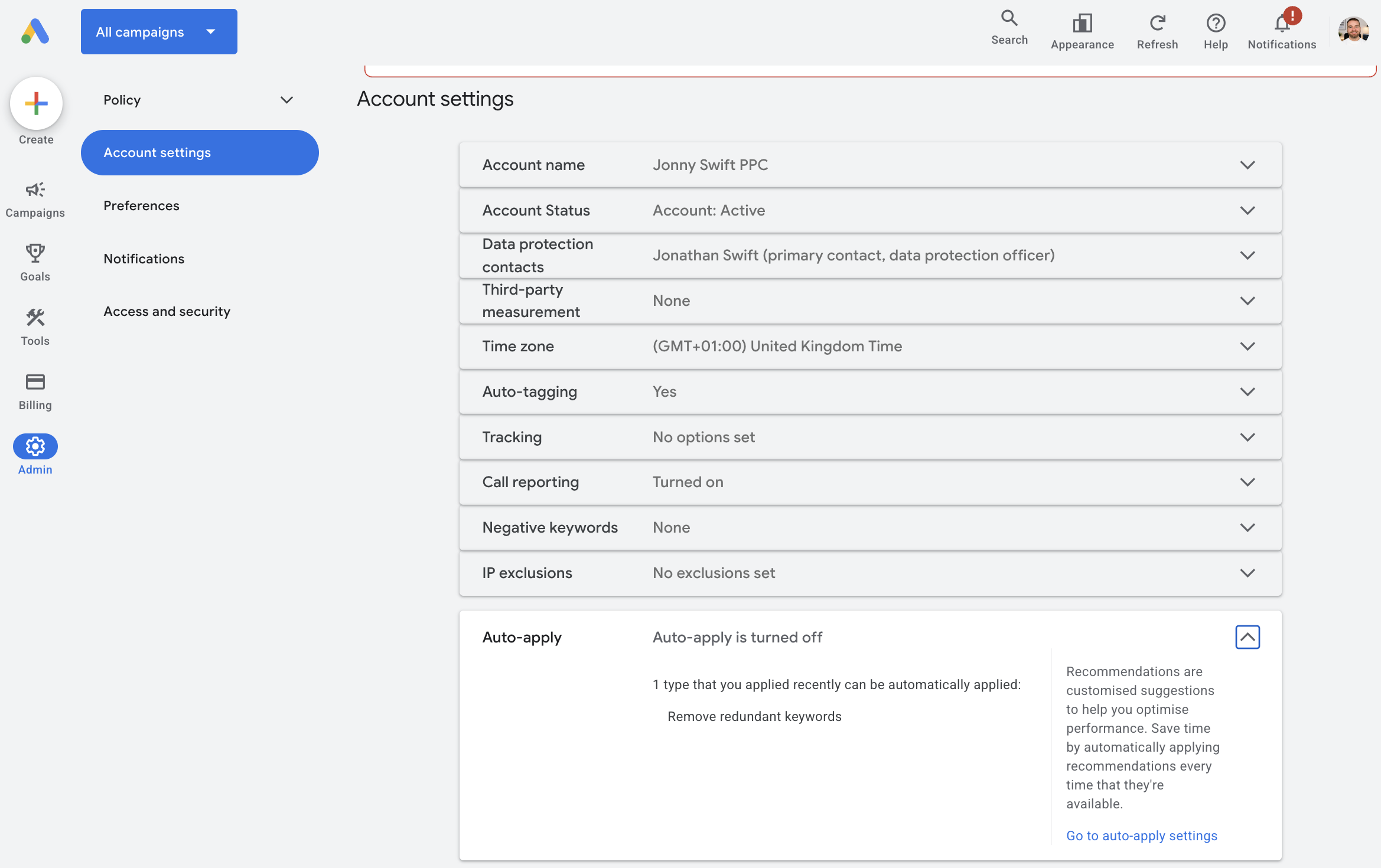
Step 3: Open Auto-Apply Settings
If any auto-apply settings are active, look towards the bottom-right area of the auto-apply section.
Click on Auto-apply settings.
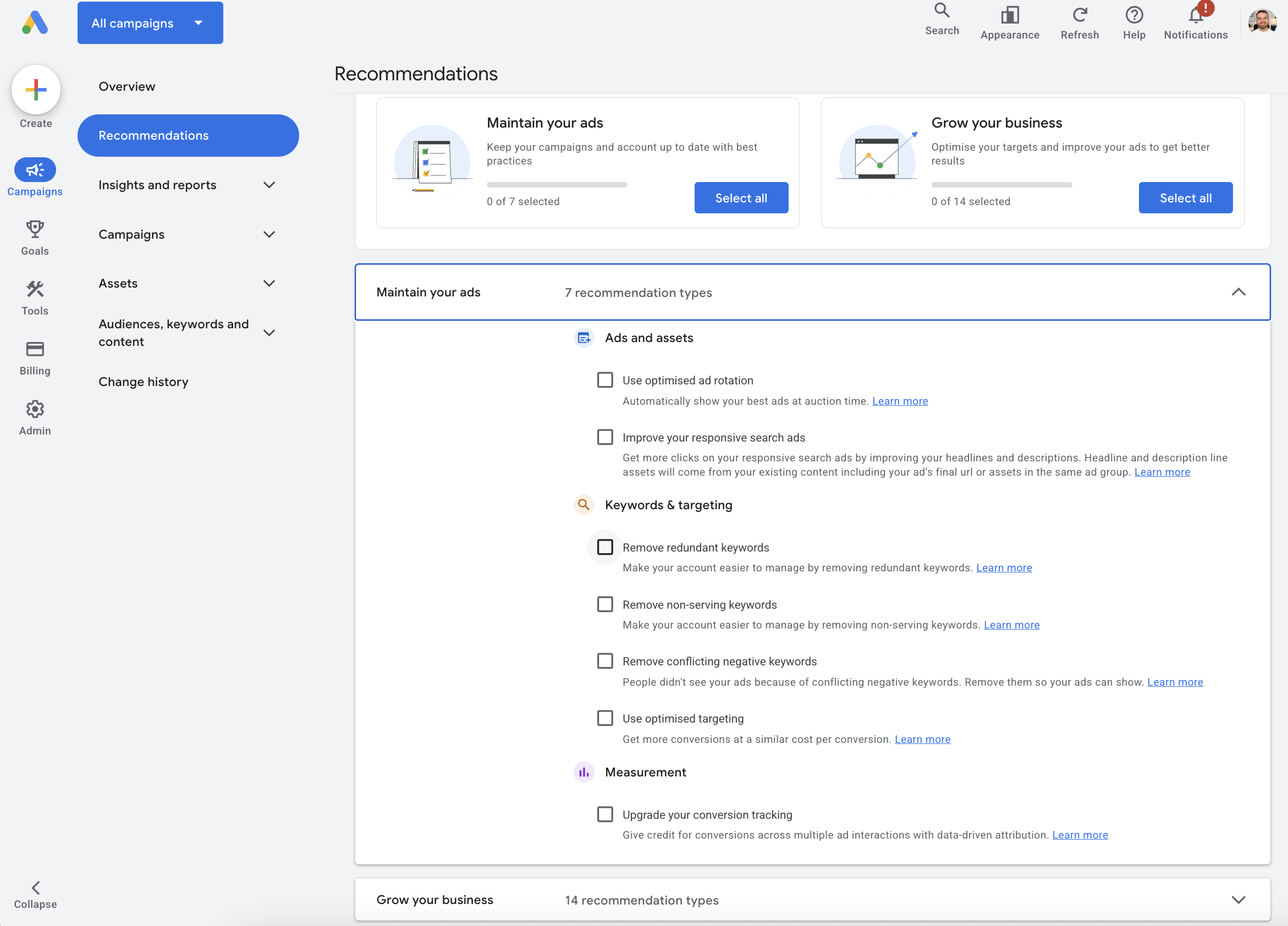
This will open the full list of recommendations that Google can automatically implement.
Step 4: Untick Any Enabled Options
Scroll down slightly until you can see all of the available auto-apply recommendations.
To disable them:
Review each setting carefully.
Identify any boxes that are currently ticked.
Untick all the options you no longer want Google to apply automatically.
Any unticked boxes will remain disabled.
Step 5: Save Your Changes
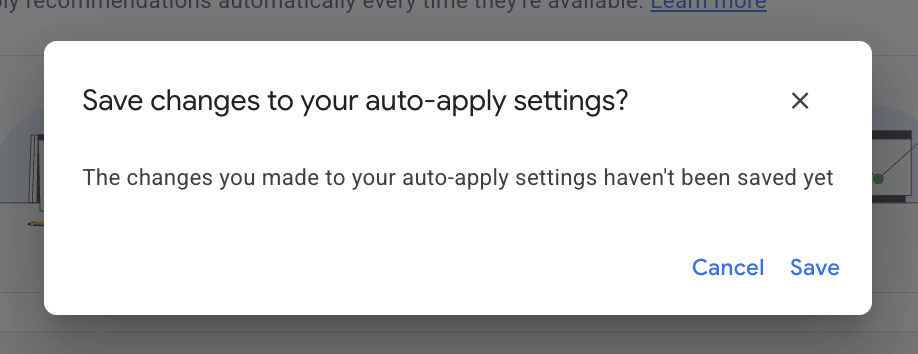
This final step isn't particularly obvious.
Once you've finished unticking the relevant boxes, click away from the auto-apply settings area.
You'll then see a pop-up message asking whether you'd like to save your changes to your auto-apply settings.
Click Save.
Once you've done this, you have successfully turned off auto-apply within your Google Ads account.
Should You Ever Use Auto-Apply?
The answer depends on your experience level and how actively you manage your campaigns.
If you're regularly reviewing account performance and making strategic decisions, I generally recommend leaving auto-apply switched off.
However, some advertisers may choose to enable specific recommendations that align with their goals.
The key point is that any automation should be intentional rather than something that's switched on without your awareness.
Google Ads works best when automation supports your strategy, not when it replaces it entirely.
Final Thoughts
Auto-apply is one of those Google Ads features that many advertisers don't realise is enabled until changes have already been made.
Taking a few minutes to check your settings can help you avoid unwanted adjustments and ensure your campaigns remain under your control.
If you prefer to review recommendations manually and make decisions based on your business objectives, turning auto-apply off is usually the right move.
If you're interested in professional PPC management to grow your business, feel free to get in touch via my contact page at jonnyswiftppc.com/contact. I'd be happy to discuss how PPC can work for you.