

If you've got a Google Ads campaign live, there may come a time when you want to update the images you're using. Maybe you've got new branding, a better quality photo, or you simply want your ads to reflect your business more accurately.
The good news is that updating images on Google Ads is very straightforward. The process varies slightly depending on whether you're using a Search campaign or a Performance Max campaign, but in both cases it only takes a few minutes.
In this guide, I'll show you exactly how to add or change images on Google Ads, so you can keep your campaigns looking fresh and relevant.
How to Change Images on a Search Campaign
It's really easy to change an image on a Search campaign.
Here's how to do it:
Log in to your Google Ads account.
Select Campaigns from the left-hand menu.
Click Campaigns again if needed to access your list of campaigns.
Select Ads.
Find the ad where you want to update the image.
Click the pencil edit button next to that ad.
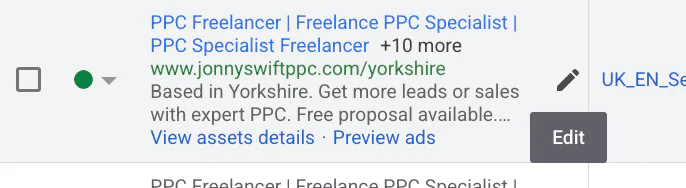
Once you're inside the ad editor:
Scroll down until you see the Images section.
Click the edit button again.
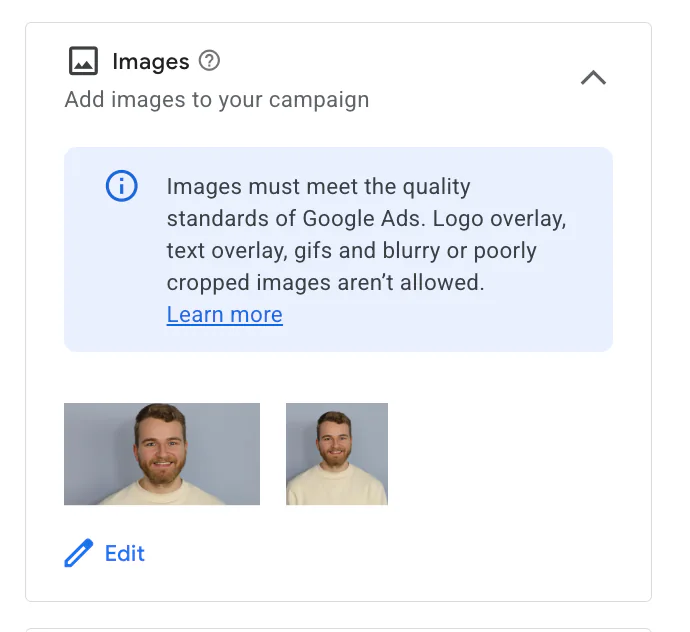
From here, you'll have a few different options:
Asset library: Choose from images you've previously uploaded.
Upload: Add a completely new image from your computer.
Website or social: Allow Google to suggest images from your website or connected social profiles.
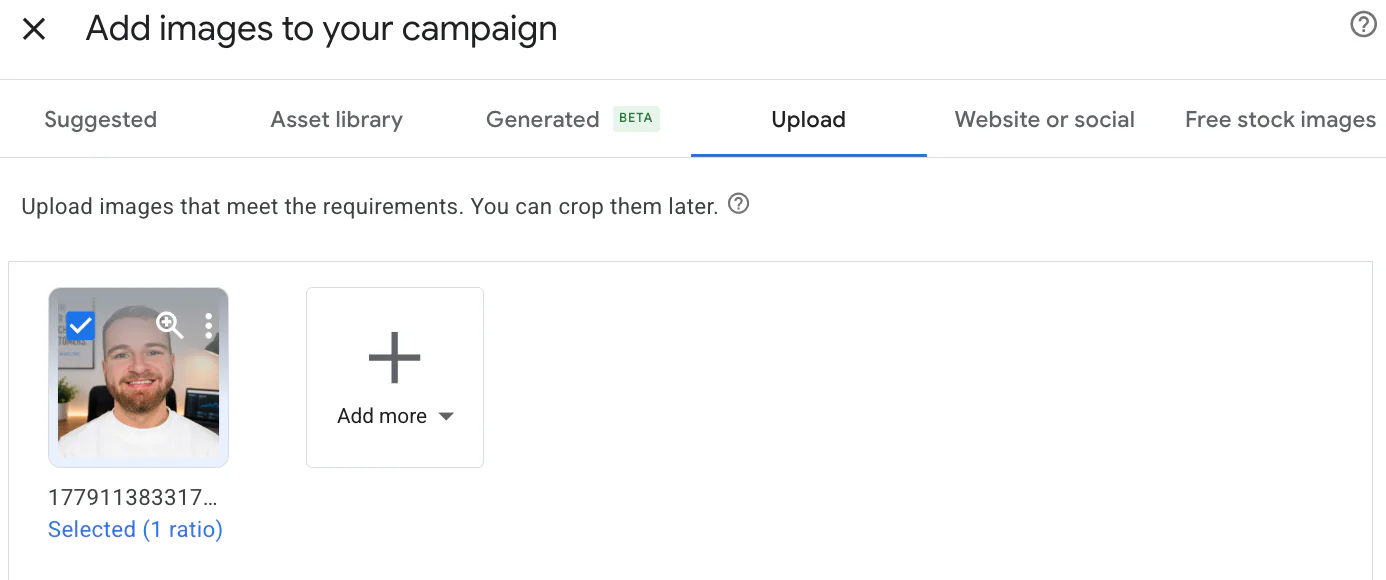
If you want to use a brand new image, simply choose Upload or Website or social, select the image you want, and click Save.
Once you're taken back to the ad editor, click Save Ad.
Your updated image should then be eligible to appear with your Google Ads.
Another useful feature is that you can remove existing images from this section if they're no longer relevant to your business.
Image Guidelines to Keep in Mind
Before uploading new images, make sure they meet Google's requirements.
It's recommended that you use high-quality images that clearly represent your business.
Google does not allow:
Logo overlays on images
Excessive text overlays
GIFs or animated images
Blurry photographs
Poorly cropped images
Choosing professional-looking images can help maintain the quality of your ads and provide a better experience for potential customers.
How to Change Images on a Performance Max Campaign
Updating images on a Performance Max campaign is just as simple.
Follow these steps:
Log in to Google Ads.
Select Campaigns.
Click on the Performance Max campaign you want to edit.
Select Asset Groups.
Find the asset group you want to update.
Click the pencil edit button.
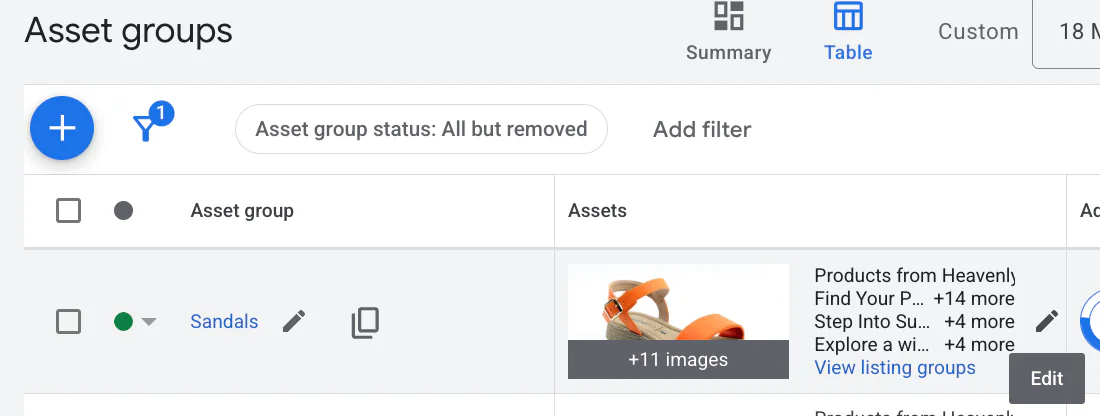
Once inside the asset group editor:
Scroll down until you see the Images section.
Click into it.
Add the images you want to use.
Click Save.
Save the overall asset group once you've finished making changes.
Use a Variety of Image Formats
One of the biggest differences with Performance Max campaigns is that Google benefits from having multiple image formats available.
Where possible, include a mix of:
Horizontal images
Square images
Vertical images
This gives Google more flexibility when serving your ads across its different placements, including Search, Display, YouTube and Discover.
That said, don't overcomplicate it. Use image formats that work for your business and showcase your products or services in the best possible way.
Why Updating Your Images Matters
Images can have a significant impact on how your business is perceived online.
Refreshing your image assets can help you:
Reflect updated branding
Showcase new products or services
Improve the overall quality of your ads
Ensure your campaigns remain relevant
Even small updates like replacing an outdated image with a clearer, more professional version can make a positive difference.
Final Thoughts
For Search campaigns, you'll edit the ad itself and update the image assets from there. For Performance Max campaigns, you'll head into the relevant asset group and make your changes within the images section.
Keeping your images up to date helps ensure your ads accurately represent your business and meet Google's quality expectations.
If you're interested in professional PPC management to grow your business, feel free to get in touch via my contact page at jonnyswiftppc.com/contact. I'd be happy to discuss how PPC can work for you.
Related Google Ads Guides
Images are only one of the assets you can improve within your Google Ads account: