

Sometimes on Google Ads, it can be quite difficult to remember which changes have been made, especially if you have not written them down anywhere.
Luckily, Google Ads records changes made within your account. It tells you what was changed, when it happened and which user made the change.
It also gives you the option to undo certain changes if you have noticed a negative impact on your account.
In this blog post, I’m going to show you exactly where to find your Change History, what information it contains and how you can use it yourself.
Where to Find Change History in Google Ads
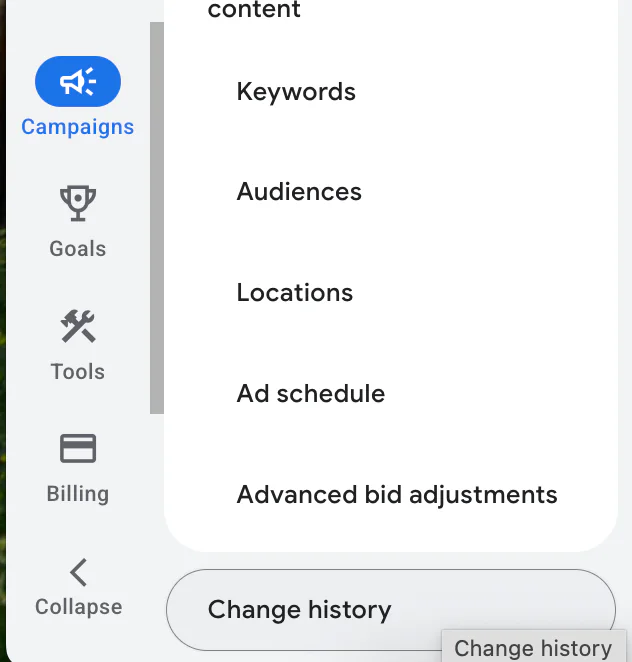
When you are logged into your account, go to:
Campaigns → Change history
Change History should appear towards the bottom of the Campaigns menu.
Once you open it, you will see a performance chart followed by a list of the changes made within the account.
Google Ads keeps Change History records from the previous two years. This means you can look back at older changes as well as anything that has happened recently.
The performance chart is particularly useful because it allows you to compare changes against metrics such as clicks, impressions, cost and conversions.
If performance suddenly dropped on a particular day, you can check whether a major account change was made around the same time.
What Information Does Change History Show?
The Change History table gives you several pieces of information about each change.
User and Time
This shows who made the change and when it happened.
If someone made the change directly through the Google Ads website, you should normally see the email address associated with their account.
This can be helpful when several people have access, such as members of your internal team, a freelancer or an agency.
Where the Change Came From
Google Ads can also show which tool was used to make the change.
This could include:
The Google Ads website
Google Ads Editor
An automated rule
The Google Ads API
An automatically applied recommendation
This is useful if you notice a change that nobody remembers making manually. It may have come from an automated system rather than an individual user.
The Change
This section tells you exactly what happened.
For example, it may show that:
A budget was increased
A bid target was changed
A keyword was added or paused
An advert was edited
A location was excluded
A campaign was enabled or paused
A bidding strategy was changed
For certain changes, you will also be able to see the old and new settings.
Campaign and Ad Group
The report shows which campaign or ad group was affected.
If no campaign or ad group appears, it may have been an account-level change instead.
This makes it easier to narrow down whether the change affected one part of the account or everything within it.
How to Filter Your Change History
If your account is regularly managed, the list of changes can become quite long.
You can use the filter option to find the information you need.
For example, you can filter by:
Campaign
Ad group
User
Bid strategy
Budget
Keywords
Status
Targeting
Location
Date
If you know that a campaign’s budget changed but do not know when, select the relevant campaign and filter the change type by budget.
You can also use the date range to focus on the period when performance started to increase or decrease.

The performance chart can help here.
If conversions dropped on a particular date, look at the changes immediately before that drop. This may help you identify something that needs further investigation.
However, remember that a change appearing on the same day as a performance drop does not automatically mean it caused it.
Performance can also change due to competitors, demand, seasonality, conversion delays and website issues.
How to Undo a Change in Google Ads
Google Ads allows you to undo many changes made within the previous 30 days.
Not every type of change can be reversed automatically. If a change supports this option, you should see an Undo button underneath it.
To reverse the change:
Find the change you want to reverse.
Check exactly what was changed.
Click Undo.
Review the confirmation message.
Click Undo again to confirm.
Google Ads should then return that setting to how it appeared before the original change was made.
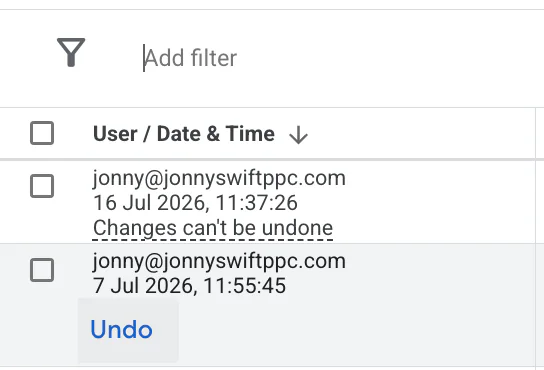
The reversal will also appear within Change History, so you will still have a record of what happened.
If you cannot see an Undo button, the change may be older than 30 days or may be a type that Google cannot reverse automatically.
In that situation, you will need to manually change the setting back yourself.
When I Find the Undo Option Useful
I find the Undo option particularly useful when an account experiences a sudden performance drop.
For example, someone may have:
Changed the bidding strategy
Increased or reduced the target CPA
Changed the budget
Paused important keywords
Altered the location targeting
Changed the campaign schedule
You can use Change History to identify what happened and reverse it if necessary.
This can help rule out whether that particular change caused the performance issue.
It is also useful if someone makes a mistake, such as pausing several keywords or changing the wrong campaign.
Instead of manually working through every setting, the Undo option may allow you to return it to its previous state much more quickly.
Do Not Reverse Changes Too Quickly
One important warning is not to panic and reverse every change as soon as performance drops.
Some Google Ads changes can cause short-term fluctuations while the system adjusts.
This is particularly common with changes involving:
Automated bidding
Target CPA
Target ROAS
Budgets
Conversion goals
Campaign targeting
A change may initially appear to have hurt performance but prove beneficial over a longer period.
For larger strategic changes, I normally recommend allowing around two weeks for performance to settle before making another decision, provided the campaign is not wasting an unacceptable amount of money.
If there has been no improvement after that period, reversing the change may be worth considering.
However, you do not need to wait two weeks when there is an obvious error. If someone accidentally increases a budget by a large amount, pauses a profitable campaign or targets the wrong country, correct it immediately.
Whenever you reverse an important change, I recommend adding an annotation or recording the reason in your own account notes. This makes it much easier to understand what happened when you review performance later.
Checking Changes Made by a Freelancer or Agency
Change History is also useful when a freelancer, agency or several internal employees manage the same account.
You can use it to see:
How frequently the account is being managed
Which changes have been made
Who made each change
Whether budgets or bidding targets were adjusted
Whether changes came from a person or automation
What happened before performance improved or declined
This does not mean that a large number of changes is automatically good or bad.
Some accounts need regular adjustments, while established campaigns may require fewer major changes.
The important thing is understanding what was changed and why it was necessary.
Change History and Auto-Apply
If you notice changes that nobody on your team recognises, check whether they were made by an automated recommendation.
Google Ads can automatically apply certain recommendations if the relevant settings are enabled.
I generally prefer to review recommendations myself before applying them. You can read my guide explaining how to turn off auto-apply in Google Ads.
Change History can help you identify whether automation changed your keywords, bidding, adverts or other campaign settings.
Conclusion
Finding Change History in Google Ads is very easy.
Go to:
Campaigns → Change history
From here, you can see what was changed, when it happened, who made the change and which campaign or ad group was affected.
You can also filter the report to find particular campaign, bidding, budget, keyword or targeting changes.
For many supported changes made within the previous 30 days, Google Ads will display an Undo option. This allows you to return the setting to how it appeared before the change.
However, do not reverse strategic changes too quickly. Give the system time to adjust where appropriate and always judge the decision using conversions, cost per conversion and overall profitability.
If you are interested in professional PPC management or would like someone to investigate a recent performance drop, feel free to get in touch through my contact page.