

To create a Performance Max campaign in Google Ads, open Campaigns, click the plus button, choose New campaign and select Performance Max.
Google then takes you through bidding, locations, assets, signals and budget settings. The important part is making those choices fit your business rather than accepting every suggestion.
This guide follows the route shown in my screenshots. For the explanation of what PMax includes and when I would recommend it, read what Performance Max is in Google Ads.
1. Check Your Tracking and Product Feed
Before building the campaign, check that Google Ads tracks the results you want to generate. For e-commerce, that normally means purchases with accurate order values. For lead generation, it means worthwhile enquiries or a suitable later stage of the sales process.
Do not let minor actions such as page views stand in for sales or genuine leads. Review the campaign’s conversion goals and test your conversion tracking if you are unsure.
If you want Shopping product ads, you also need a suitable Merchant Center account linked to Google Ads, with products eligible to advertise. PMax does not create your product catalogue for you. Google explains these prerequisites in its Merchant Center campaign setup guide.
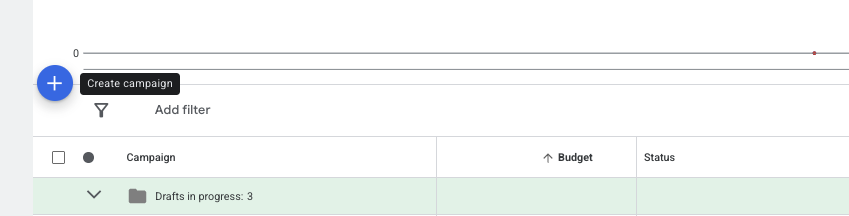
2. Click the Create Campaign Plus Button
Open Campaigns and find the blue plus button. Click it, then choose New campaign.
3. Choose Performance Max
For the route I’m using, select Create a campaign without guidance, then choose Performance Max from the campaign types.
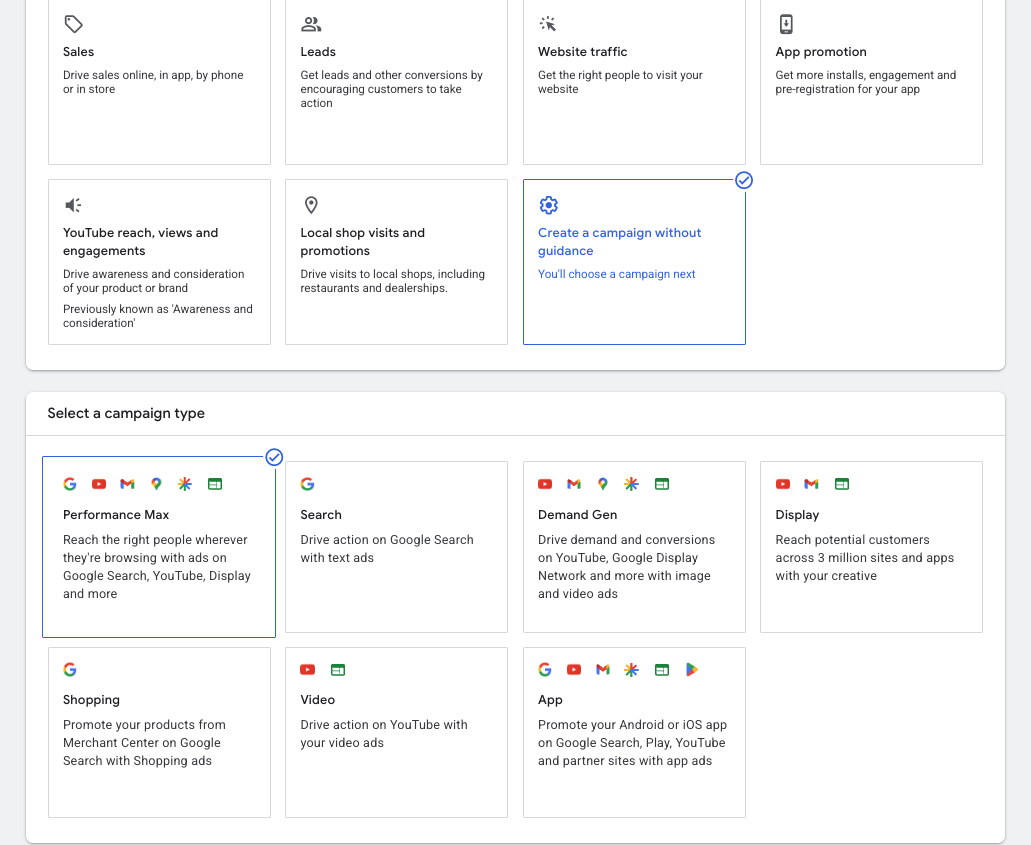
Google’s documentation calls this option “Create a campaign without a goal’s guidance”. Wording can vary slightly between interfaces. You still need to confirm the conversion goals used by the campaign. This route does not remove conversion tracking or bidding requirements.
Check the goals, give the campaign a clear name and continue. For a retail campaign, select the appropriate Merchant Center account and product feed options when prompted. See Google’s setup without goal guidance for the documented route.
4. Choose Your Bidding Objective
PMax uses automated bidding. Choose whether Google should focus on conversion value or conversions.
For e-commerce with accurate order values, I would normally consider Maximise conversion value. You can add a Target ROAS if you want an average return for the campaign to work towards.
If you care about conversion volume and treat those conversions equally, Maximise conversions is another option, with an optional Target CPA. The labels and ordering can differ between setup screens. Google describes the choices in its PMax bidding guidance.
Be Careful with Targets at the Start
I prefer to avoid an aggressive target at the beginning. For some campaigns, I would consider Target ROAS around 100–200%, but only where that return is affordable during the test.
A 100% return based on sales revenue only matches revenue to ad spend. It does not cover the costs of selling the product. Review margins and historical performance before choosing your target.
An overly low Target CPA can also restrict bidding, especially when it is unrealistic for the campaign’s results. Target CPA does not automatically struggle simply because the campaign is new; the target and available data matter.
For the numbers and settings, read what Target ROAS means and how to set Target ROAS in Google Ads.
5. Set Locations, Languages and Landing Pages
Choose the locations where you can sell or provide your service, then review the location options and language settings. If you need to rule out particular areas, see how to exclude locations in Google Ads.
Enter a relevant final URL. It should take the visitor to a page that matches the offer, rather than forcing them to find the right product or service themselves.
Also review Final URL expansion. When enabled, Google can send traffic to another relevant page on your website rather than only the URL you entered. You can use URL exclusions, or turn expansion off if you need traffic to go to a specific page. Google’s Final URL expansion guide explains these controls.
Changing the final URL alone does not necessarily restrict every destination when expansion remains enabled.
6. Build Your Asset Group
An asset group brings together the text, images and other creative that Google can use to assemble your ads. Keep the assets relevant to the same product or service theme.
Work through the required fields, including headlines, descriptions, images, business details and other assets requested by the setup screen.
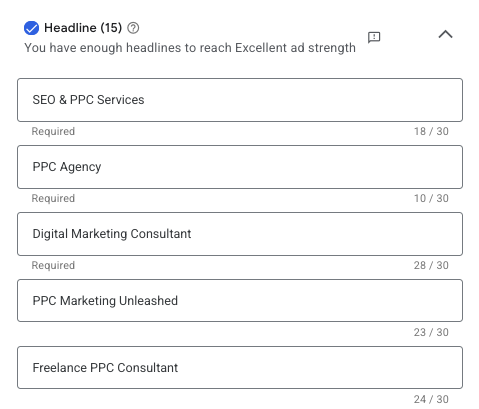
Google may suggest headlines and other content. Review each suggestion and edit or remove anything that does not describe your business accurately. Keep the required fields populated with suitable alternatives.
Ad strength is useful feedback about your asset mix. “Excellent” does not guarantee sales, good leads or profitability, so I would not chase the score at the expense of accurate, relevant wording.
Provide suitable video creative where possible. Google can generate videos from other assets if you do not supply one, so review what the campaign has available. Google’s retailer asset guidance covers this.
7. Add Relevant Search Themes and Signals
Search themes let you provide phrases that your potential customers might use when looking for your products or services.
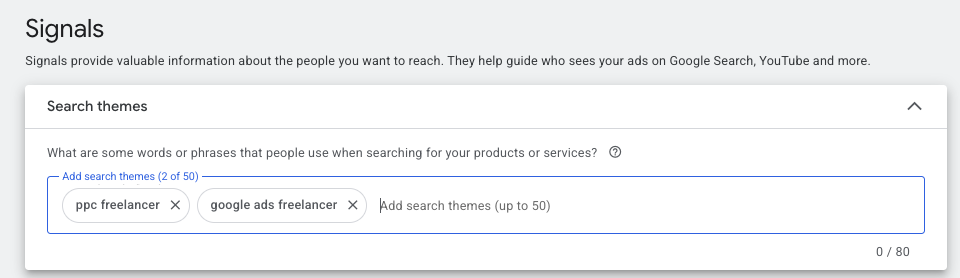
I would start with a few useful themes. They can be broader than individual product searches, but they should still describe what you sell. For a footwear shop, “women’s boots” is useful context; “shopping” is too vague to explain the offer.
These are signals rather than keyword restrictions. PMax can reach beyond the themes you enter. Google currently allows up to 50 search themes per asset group, but you do not need to fill every slot. See Google’s search themes guidance.
Audience signals are separate inputs that can help guide the campaign. They are not the same as limiting the campaign to a selected audience.
8. Set a Budget and Review Before Publishing
When the setup asks for your budget, enter an average daily amount you can sustain. Check the bidding targets, conversion goals, locations, product selection and creative before completing the campaign.
If your budget is around £20 a day or less, I would often consider a focused Search or Standard Shopping campaign first. That is my recommendation rather than a Google minimum; suitability depends on your niche and the cost of generating useful data.
My guide to how much you should spend on Google Ads will help you think through the amount.
Resolve any required-field errors and review the final summary before publishing. The exact order of sections can vary depending on your goal, account and whether you have connected a product feed.
What Should You Check After Launch?
Monitor spending, conversions, conversion value and the quality of the results. Allow for the time it takes a click to become a purchase or a qualified enquiry.
Do not judge success solely by ad strength or the number of conversions. For e-commerce, check the return alongside product margins. For lead generation, check whether the enquiries become worthwhile customers.
For my recommendations on campaign suitability, return to the Performance Max explainer. If you would like help reviewing your setup, request a free Google Ads audit.