

If you’re running Google Ads for localised services, knowing how to exclude locations in Google Ads is just as important as choosing where to target.
Not every area is profitable. Not every postcode makes sense for your business. And if you don’t control your location targeting properly, you can waste budget very quickly.
In this guide, I’ll walk you through:
Why you might want to exclude certain locations
Exactly how to exclude locations in Google Ads
An important location settings tip that most advertisers miss
Let’s start with why this matters in the first place.
Why You Might Want to Exclude Certain Locations
If you’re a local service business, you probably don’t want to cover everywhere.
There are plenty of valid reasons to exclude specific areas:
1. Distance and Travel Costs
If a location is too far away:
Fuel costs increase
Travel time eats into profit
Jobs become less efficient
In my experience, once travel starts eating into your margins, your cost per lead may look fine, but your actual profitability drops.
2. Different Laws or Regulations
Some services are regulated differently depending on the area.
If you operate in multiple regions, you may:
Be licensed in one area but not another
Face different compliance requirements
Need separate pricing structures
In these cases, excluding certain areas protects you from unnecessary complications.
3. Higher Operating Costs in Specific Areas
Some locations simply cost more to service.
That might be because of:
Congestion
Parking costs
Tolls
Higher wage expectations
If the numbers don’t stack up, it makes sense to remove them.
4. You Cater to a Specific Group
Sometimes you’re targeting a very specific demographic or community.
For example:
Focusing on affluent areas
Avoiding student-heavy locations
Targeting commercial zones only
Google Ads gives you control. It’s up to you to use it strategically.
How to Exclude Locations in Google Ads
Now let’s get practical.
Exclusions in Google Ads are done at campaign level.
This is important.
If you change the location settings in one campaign, it does not automatically update the others. You’ll need to repeat the process for each campaign individually.
Here’s exactly how to do it.
Step 1: Go to the Campaign You Want to Edit
Log into Google Ads
Click on the specific campaign
Click the cogwheel icon (Edit settings)
Scroll down until you see Locations.
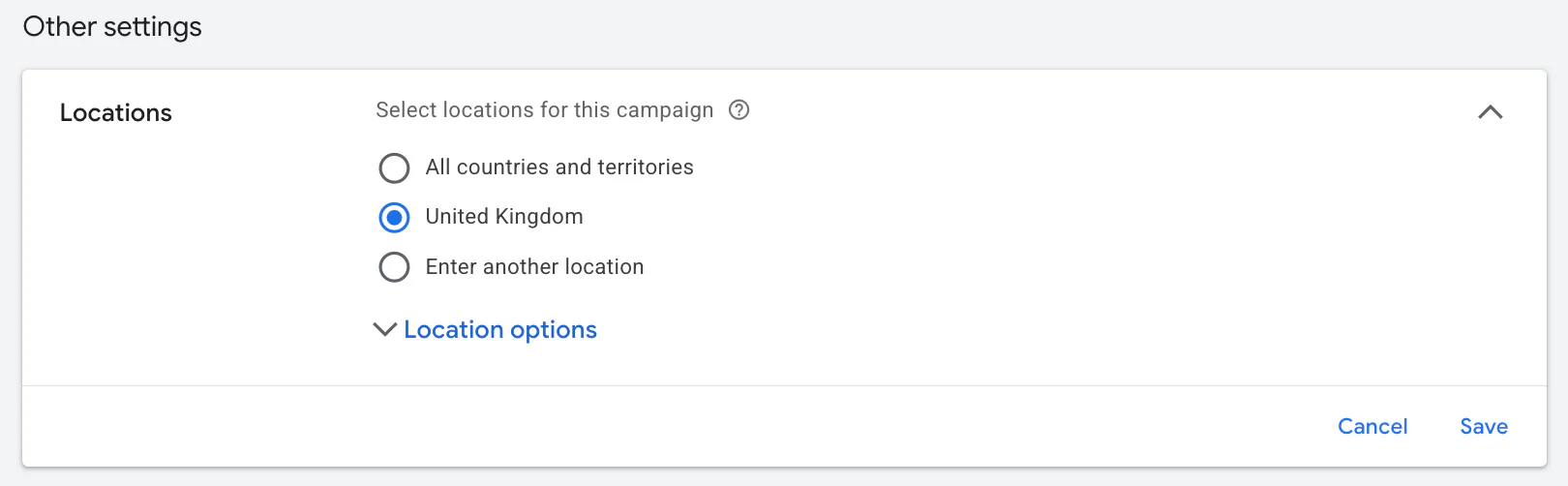
Step 2: Open Location Settings
Click on Locations
Click “Enter another location”
At this stage, make sure your main target location is included.
For example, if you operate in the United Kingdom, ensure United Kingdom is set as included.
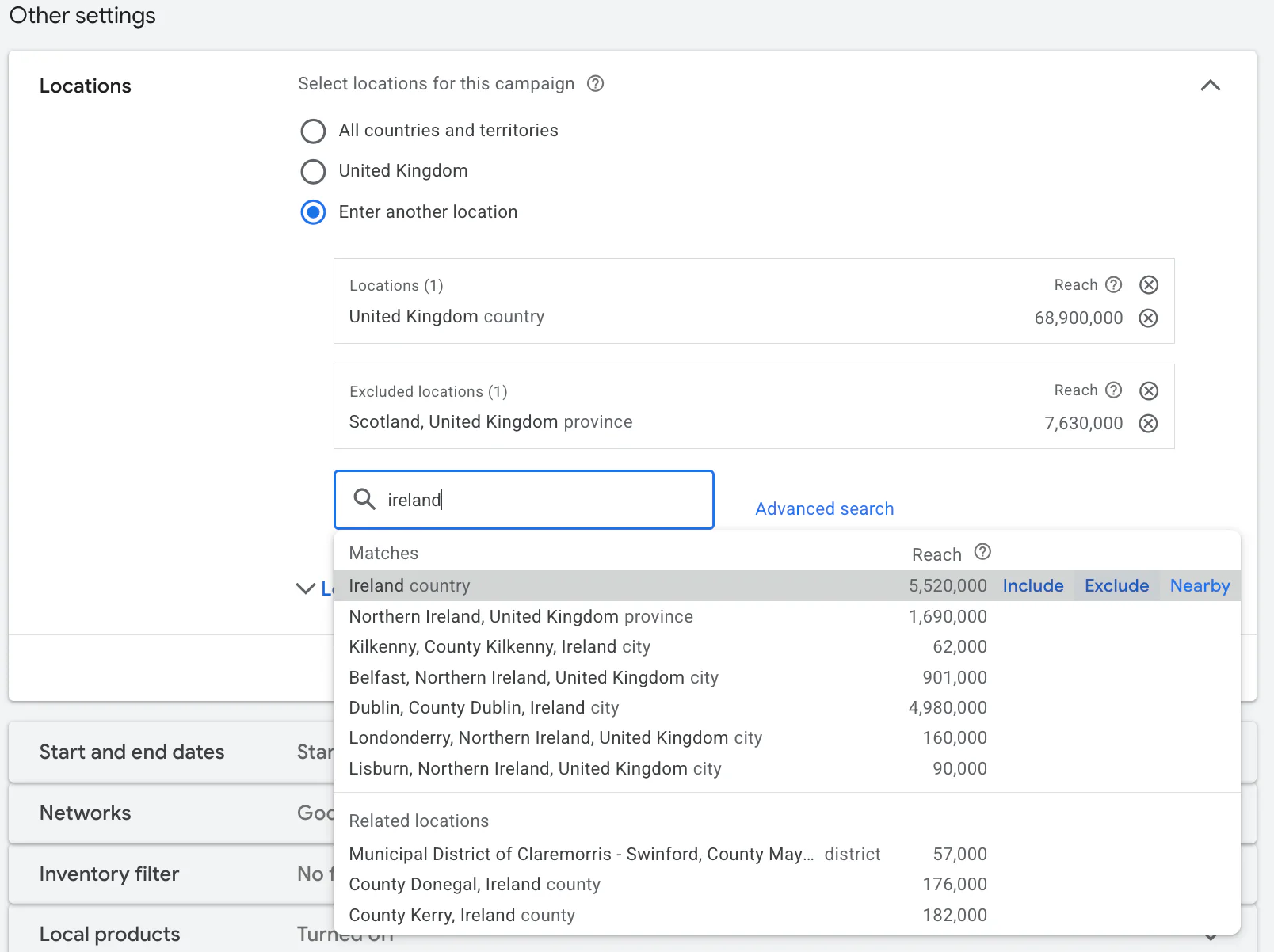
Step 3: Add the Location You Want to Exclude
Let’s say you want to exclude Scotland.
Type “Scotland” into the location search
Click Exclude
Important: Do not click Include by mistake.
If you want to be even more precise, click Advanced search.
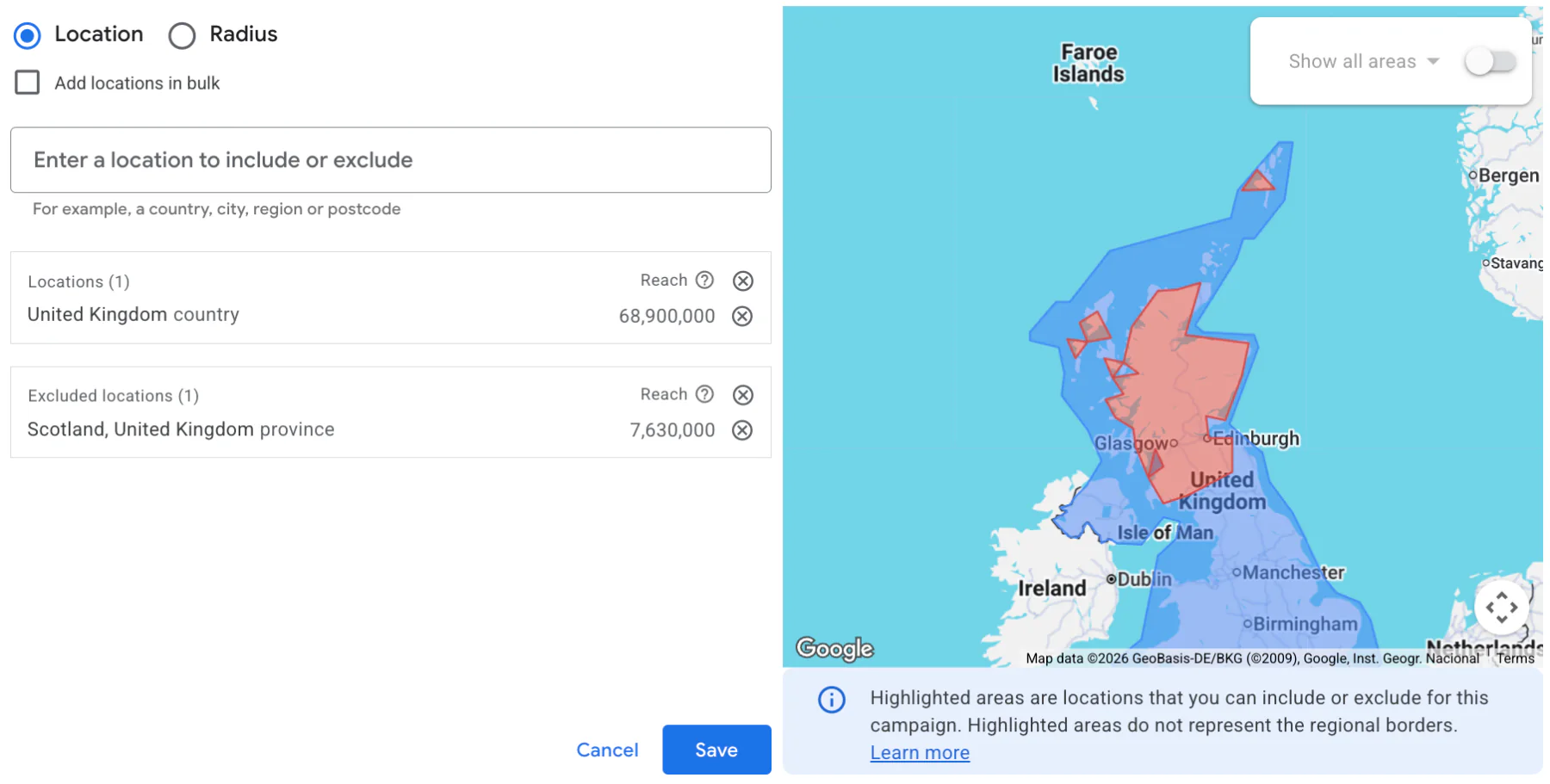
This allows you to:
Select specific regions
Review available targetable areas on the map
Exclude a supported country, region, city or other available location
Just remember, if your goal is to remove an area, always choose Exclude.
Step 4: Click Save
Once everything looks correct:
Double-check your included areas
Double-check your excluded areas
Click Save
That’s it.
Important Tip: Use “Presence” Instead of “Presence or Interest”
This is something many advertisers overlook.
Under Location Options, you’ll see targeting choices:
Presence or interest
Presence
I strongly recommend choosing Presence only.
Here’s why.
If you use “Presence or interest”, Google may show your ads to people outside your target area if they’ve shown interest in it.
For example:
Someone abroad searching about your service
Someone researching from another country
That can generate irrelevant clicks.
Using “Presence” gives you cleaner data and stronger intent. Especially for local services, it’s almost always the better option.

Check the Limits of Location Targeting
Advanced search does not mean you can draw any custom exclusion area. Choose locations Google supports and check the selected area before saving. If you include a city but exclude the wider region containing it, the exclusion takes priority.
Presence targeting includes people in or regularly in your chosen area. Google uses location signals, so it cannot guarantee perfect accuracy. For a local service, also check where enquiries actually come from. Businesses serving travellers or people booking from elsewhere may have a reason to use presence or interest.
See Google’s guides to location exclusions and advanced location options for the available settings.
If you need help putting these checks into practice, my Google Ads management service can help you review the account and decide what to work on next.
Final Thoughts
Learning how to exclude locations in Google Ads properly can significantly improve campaign efficiency.
You’re not just controlling geography. You’re protecting your margins.
To recap:
Exclusions are done at campaign level
Changes must be repeated per campaign
Always double-check you’re clicking Exclude, not Include
Use Presence only for more accurate targeting
Google Ads gives you powerful control. But it only works if you use it properly.
If you're interested in professional PPC management to grow your business, feel free to get in touch via my contact page at jonnyswiftppc.com/contact. I'd be happy to discuss how PPC can work for you.