

Right now, you might have an outdated logo or no logo on your Google Ads account at all. If that is the case, you are missing an easy opportunity to strengthen your brand recognition.
Your logo appears across different campaign types, particularly Performance Max and Display campaigns, and it helps build trust with potential customers. In this blog post, I am going to show you exactly how to add a logo to your Google Ads account or update an existing one.
It only takes a few minutes, but it is something many advertisers overlook.
Why Adding a Logo to Google Ads Matters
Before we get into the steps, it is worth understanding why this matters.
Your logo:
Improves brand recognition
Increases trust and credibility
Makes your ads look more professional
Supports stronger performance in visual placements
In my experience managing Google Ads accounts for UK businesses, small branding improvements can have a noticeable impact on click-through rates, especially in competitive markets.
If you are running Performance Max or Display campaigns without a logo, you are not using the platform properly.
How to Add a Logo to Google Ads (Step-by-Step)
Here is exactly how to add a logo to your Google Ads account.
Step 1: Go to Your Google Ads Account
Log into your Google Ads account as normal.
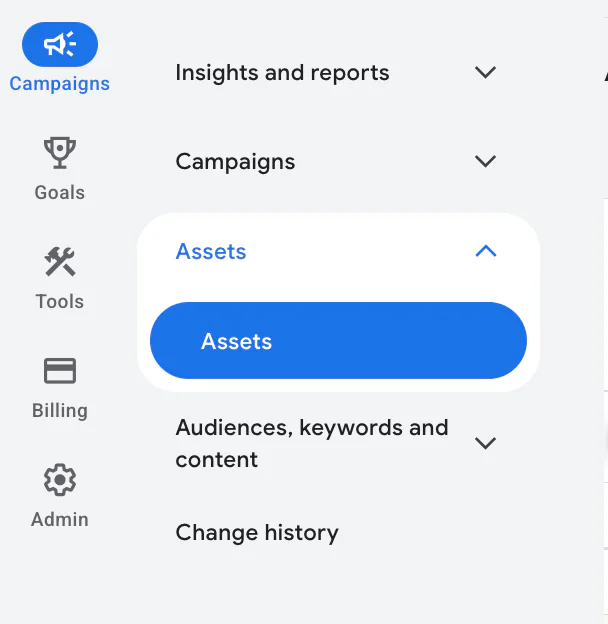
From the left-hand navigation menu:
Click on Campaigns
Click on Assets
Click on Assets again within that section
You will now see a list of all your current assets.
Step 2: Select “Business Logo”
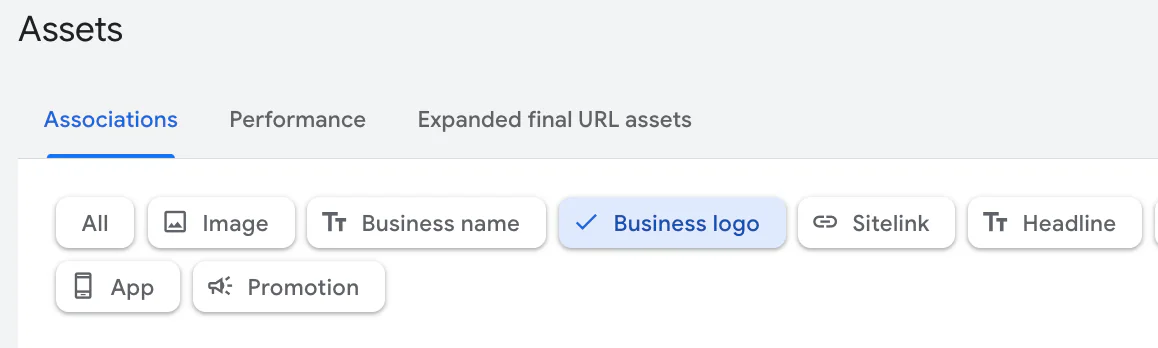
You will see various asset types such as:
Headlines
Descriptions
Images
Business name
Business logo
Click on Business logo.
If your filters are cleared, you should see your existing logo here. If you do not currently have one, this section may be empty.
Keep in mind this can differ slightly depending on campaign type, but the overall process is the same.
Step 3: Click the Plus Button to Add a New Logo
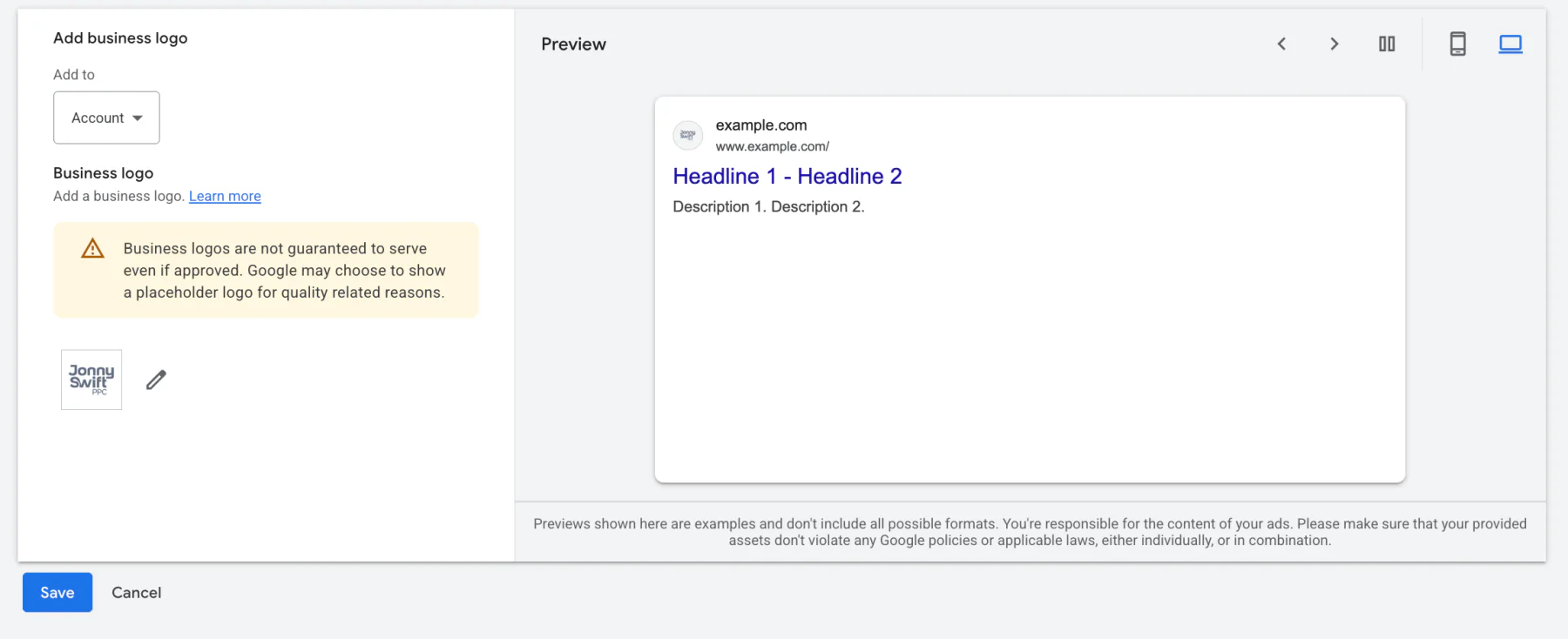
To add a new logo:
Click the blue plus button
Choose whether to apply it at Account level or Campaign level
Click on + Business logo
Either:
Select one from your existing asset library, or
Upload a new logo file
Click Save
That is it.
Should You Add the Logo at Account or Campaign Level?
This is important.
I strongly recommend adding your logo at account level.
Here is why:
It is easier to manage
You avoid missing campaigns
You maintain consistent branding
It reduces the risk of asset conflicts
In most cases, you should have one logo across the entire account.
The only time I recommend using campaign-level logos is if:
You run alternative websites
You have different brand divisions
You use different logos for specific product lines
If you do use campaign-level logos, I recommend deleting the logo from the account level. Otherwise, it can override your campaign settings.
If these are completely separate businesses, they should ideally be in separate Google Ads accounts anyway. In that case, you do not need to worry about conflicts.
How to Update or Remove a Logo in Google Ads
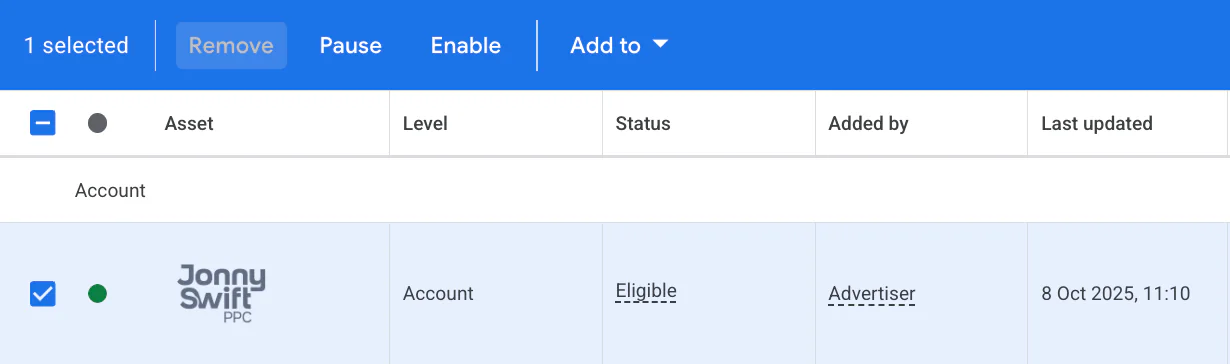
If you want to update or delete your current logo:
Go back to Campaigns > Assets > Assets
Click on Business logo
Click on the logo you want to remove
Click Remove
Then simply upload the new version using the steps above.
It is good practice to update your logo if:
You have rebranded
Your logo quality is low resolution
You have changed brand colours
You want a more modern version
Always upload a high-resolution, square format logo where possible for best performance across placements.
Common Mistakes to Avoid
Here are a few issues I regularly see in accounts:
No logo uploaded at all
Low quality or stretched logos
Different logos across campaigns without reason
Forgetting to update the logo after rebranding
Google Ads is increasingly automated. If you do not give the system high-quality creative assets, it will not perform at its best.
Brand consistency still matters, even in performance-focused campaigns.
Final Thoughts
Adding a logo to your Google Ads account is a small task that can make a meaningful difference to your brand presence and ad performance.
To recap:
Go to Campaigns > Assets > Assets
Click Business logo
Add it at account level where possible
Remove outdated logos to avoid conflicts
It only takes a few minutes, but it helps ensure your campaigns look professional and consistent.
If you're interested in professional PPC management to grow your business, feel free to get in touch via my contact page at jonnyswiftppc.com/contact. I'd be happy to discuss how PPC can work for you.