

If you’re wondering how to grant access to Google Ads, you’re not alone. It’s something most businesses need to do at some point, whether that’s for a team member, marketing assistant, or an external PPC specialist.
In this guide, I’ll walk you through exactly how to give access properly, what settings to be careful with, and the difference between user access and manager access. I’ll also explain a few small security steps that many people overlook.
Let’s get into it.
Why You Might Need to Grant Access to Google Ads
There are a few common reasons businesses need to share access:
A new team member joins your marketing department
You hire a freelancer or PPC consultant
You bring in a digital marketing agency
You want someone to audit your account
Your accountant needs access for reporting
If you're working with a Google Ads account manager, they’ll need access to properly manage campaigns, optimise performance, and monitor conversions.
I regularly help both small and large businesses manage their campaigns, and the first step is always getting access set up correctly.
Now let’s look at how to do it.
Step 1: Go to Admin and Access & Security
To grant access:
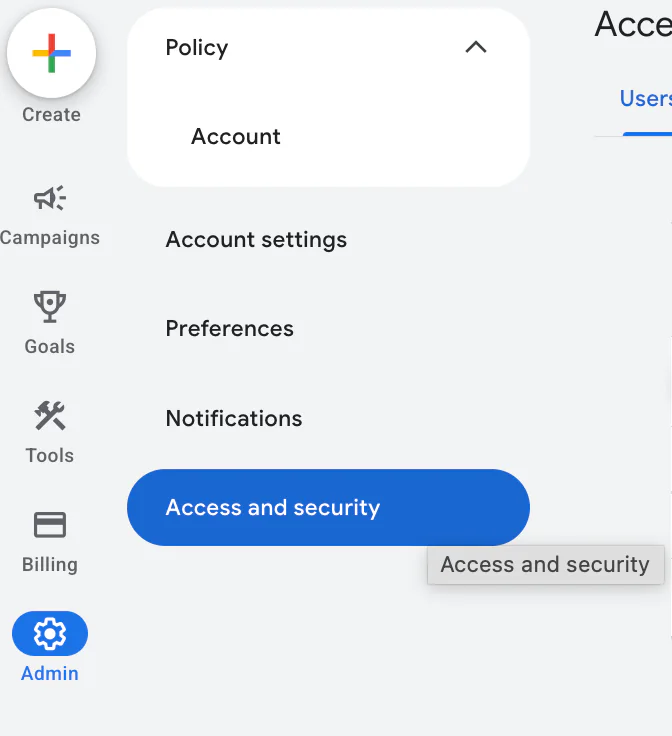
Log in to your Google Ads account
Click Admin on the left-hand side
Click Access and Security
This is where all user and security settings are managed.
Step 2: Update Security Settings (Recommended)
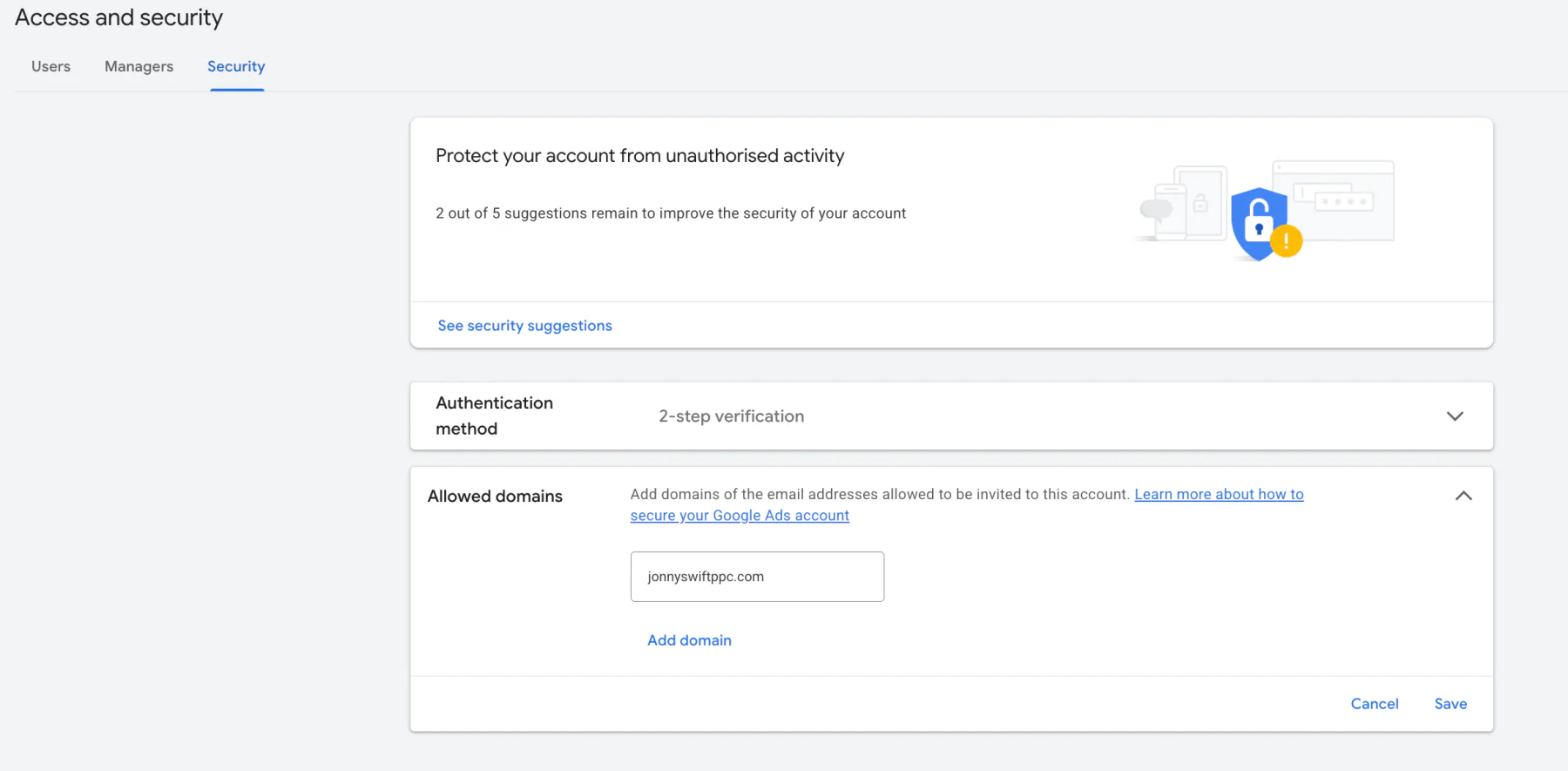
Before adding any users, I recommend checking your security settings.
Click on the Security tab and look at Allowed domains.
Here’s what this does:
It allows you to restrict account access to specific email domains.
For example:
If you're giving me access, you could add jonnyswiftppc.com
If someone is using Gmail, you might allow gmail.com
If it’s an internal team member, you can add your own company domain
If the person you're adding is already on the same domain as you, you usually don’t need to worry about this.
This small step adds an extra layer of control and reduces risk.
Step 3: Adding a Standard User (Best for Team Members)
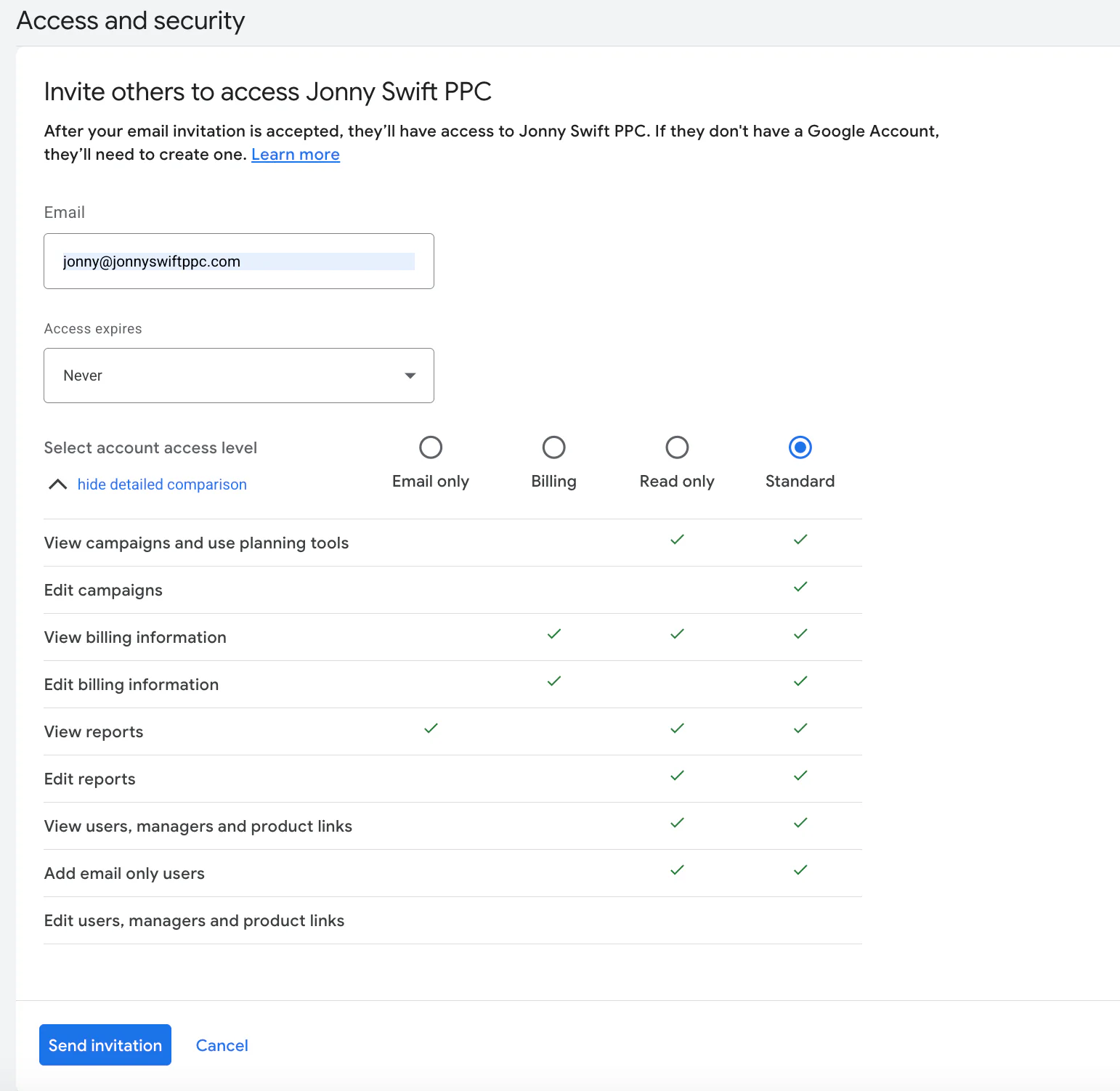
If you're giving access to someone within your business, or someone who just needs direct account access, use the Users tab.
Here’s how:
Click the Users tab
Click the blue + button
Enter their email address
Choose their level of access
Click Send invitation
They will receive an email invite and must accept it before access is granted.
Step 4: Granting Access to a Google Ads Manager Account
This is where people often get confused.
If you're working with a PPC freelancer or agency who uses a manager account, you cannot invite them the same way as a standard user.
Instead, they must request access from their side.
Here’s how it works:
What the PPC Manager Does
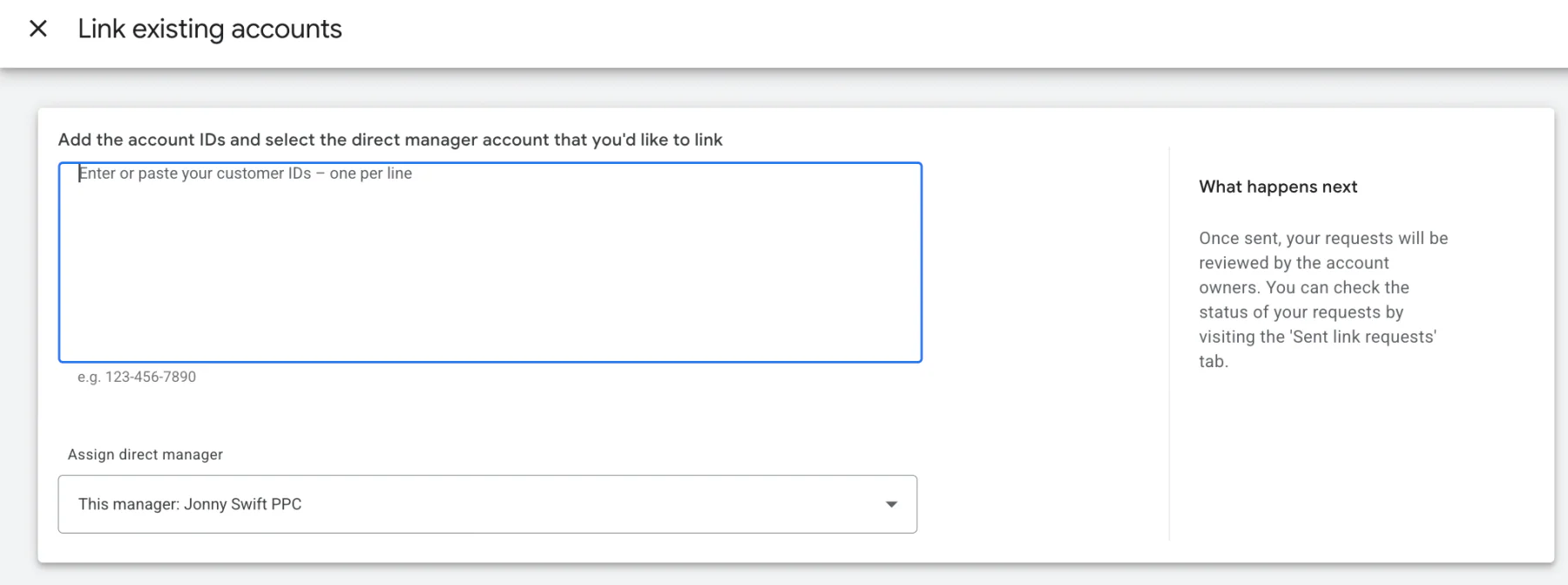
They log into their Manager Account
Go to Accounts
Click the + button
Select Link existing account
Enter your Customer ID
Your Customer ID is visible at the top of your Google Ads account.
Once they send the request, it goes to one of the admins on your account.
What You Need to Do
Go to Access and Security
Review the pending manager request
Approve the link
Once accepted, they’ll have access via their manager account.
Common Mistakes to Avoid
From experience, here are a few common issues I see:
Giving full Admin access when it’s not necessary
Forgetting to remove access when someone leaves
Not restricting allowed domains
Confusing standard user access with manager account linking
Sharing login details instead of using proper user permissions
Never share your main login details. Always grant access properly through the system.
Should You Use User Access or Manager Access?
In simple terms:
Use User access if:
It’s a team member
They log directly into your account
It’s temporary access
Use Manager access if:
You’re hiring a PPC freelancer
You’re working with an agency
You want account oversight from an external expert
In my experience managing Google Ads accounts, manager access is usually cleaner and more professional when working with external specialists.
Final Thoughts
Now you know exactly how to grant access to Google Ads, whether that’s for a team member or a PPC manager.
The key things to remember:
Always check security settings
Choose the correct access level
Use manager linking for freelancers and agencies
Never share login credentials
Getting this set up properly protects your account and ensures smooth collaboration.
If you're interested in professional Google Ads management to grow your business, feel free to get in touch via my contact page at jonnyswiftppc.com/contact. I’m a freelance PPC specialist who helps both small and large businesses run profitable campaigns, and I’d be happy to discuss how Google Ads can work for you.