

You’ve got a Google Ads campaign live, you’ve given it a budget, but it’s barely spending. If Google has money available, why isn’t it using it?
The short answer is that your budget alone does not create traffic. A new campaign may need time, while an established one might be held back by verification, restrictive bidding, weak ad copy or too few relevant searches.
In this guide, I’ll explain where to look, whether you’ve just launched your first campaign or an older one has started struggling to spend. The keyword and click checks mainly apply to Search campaigns.
First, Check Whether You’re Getting Impressions or Clicks
For Search ads charged on a cost-per-click basis, you pay when somebody clicks. Impressions tell you that your ads have been shown, but impressions on their own do not mean you’re spending money.
Start by looking at Impressions, Clicks, CTR, Avg. CPC and Cost for the campaign, using a date range that covers when it has actually been running.
- No impressions: check account restrictions, ad approval, bidding and targeting first.
- Impressions but very few clicks: look at your ad copy, relevance and how competitive your ads are.
- Clicks but low spend: look at how many clicks you’re getting and their average cost. There may simply be less available traffic than your budget allows for.
For example, 10 clicks at an average CPC of £2 would cost around £20. Setting a £100 average daily budget does not guarantee another £80 of suitable clicks.
Your budget is also an average daily amount, so one quiet day does not tell you much on its own. Google explains how spending varies in its budget and spending guide. Other campaign types can use different charging models.
1. Give a New Account or Campaign Time
I’ve had accounts where I’ve set everything live, the campaign looks ready to spend, but Google has been slow to push the ads out. In some brand-new accounts, I’ve seen it take one to two weeks to get moving.
That is my experience, rather than a fixed waiting period for every account. A campaign that has only been live for a day or two may still be going through ad review or learning.
Google says new or edited ads can take one to two days to be reviewed, and automated bidding needs time to adjust. Its campaign troubleshooting guide recommends investigating if you still have no impressions after three working days.
Give a genuinely new campaign some breathing room, but check the settings below while you wait. Time will not fix a rejected document, a failed payment or a paused ad.
There is more context in my guide to how long Google Ads takes to work.
2. Check Advertiser Verification and Account Warnings
One of the first places I would look is advertiser verification. I’ve seen verification get rejected in accounts where ads were struggling to get pushed out, so it is worth checking rather than assuming everything is complete.
Go to Admin → Policy → Account and review the verification tasks and any warnings. Google now calls this the Account page, although you may still see references to advertiser verification.

If you see an error like this, check that the information and documents match what Google has requested. Uploading a document does not mean it has been accepted.
Not every unverified account is prevented from running ads. However, verification-related serving limits can affect delivery, and missing a required deadline can pause the account. Google sets out the different cases in its verification timelines guidance.
Also check for billing problems, a security review or suspension, and disapproved or paused ads. These need resolving before changing your keywords or increasing your budget.
3. Check Whether Your Bidding Is Restricting Spend
The bidding strategy tells Google what to aim for. Your budget might be available, but an overly restrictive bid limit or target can make it difficult to enter enough suitable auctions.
Maximise Clicks: Is the Maximum CPC Too Low?
If you use Maximise Clicks, check whether you have added a maximum CPC bid limit. This is different from the campaign’s daily budget.
A very low cap can hold back the number of clicks you receive. I would look at raising it, or testing its removal where the business can afford the potential click costs, then monitor spend and lead quality.
Google’s Maximise Clicks guidance confirms that a bid limit can restrict ad position and click volume. A higher bid can make you more competitive, but position also depends on ad quality and the auction. Paying more does not guarantee the top spot.
Target ROAS: Is the Target Too High?
I’ve had businesses come to me with 1,000% ROAS targets while their campaigns were struggling to distribute ads. That target asks Google to aim for £10 in tracked conversion value for each £1 spent.
A 1,000% target is not automatically wrong. The problem is setting a return that the campaign cannot realistically achieve at a useful level of spend.
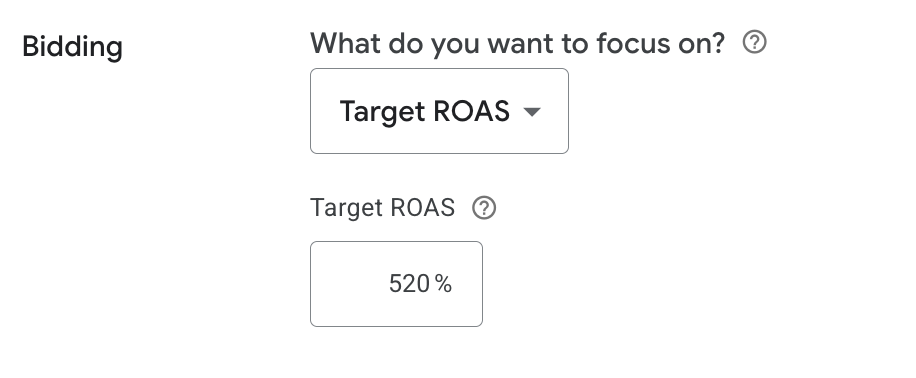
If you see Limited by target, compare your target with actual performance and your margins. A lower Target ROAS may give Google more room to find opportunities, but you still need a return that works for the business.
My guide to setting or changing Target ROAS shows where to edit it.
Target CPA: Is the Target Too Low?
Target CPA works in the opposite direction. If you ask Google to find enquiries at a cost far below what the campaign has been achieving, it may struggle to find enough opportunities.
Consider raising an unrealistic Target CPA, rather than lowering it further. Compare it with your historical cost per conversion and what you can afford to pay for a useful enquiry. Google covers this in its Target CPA troubleshooting guide.
For conversion-based bidding, also check your conversion tracking. Missing conversions or incorrect values can leave Google optimising towards the wrong information.
4. Make Sure Your Ad Copy Gives People a Reason to Click
If your ads are getting impressions but very few clicks, review what people actually see. It may be that your copy is not giving them a strong enough reason to choose you.
You’re appearing alongside businesses bidding for similar keywords. Make your offer clear and include relevant promotions, genuine selling points and the information that matters to somebody comparing suppliers.
- Does the headline match the product or service being searched for?
- Is there a clear reason to choose your business?
- Are current offers, delivery details or service benefits included where relevant?
- Does the landing page support what the ad promises?
Keep those claims accurate. The aim is to attract relevant potential customers, so judge changes by enquiries or sales as well as clicks.
5. Check Your Ad Schedule
Scheduling can trip people up. You might have a campaign ready to run but only allow it to appear during a small part of the week.
Review the days and hours in your ad schedule and check the account’s time zone. Are you available during the times your customers are likely to search?
A business that needs somebody to answer the phone may have a good reason to restrict hours. However, if customers can enquire or buy outside office hours, a narrow schedule could be excluding useful searches.
My Google Ads scheduling guide shows where to review this.
6. Check Whether Your Locations Are Too Narrow
Location targeting can create the same problem. A niche service advertised in a tiny area may have very few relevant searches, even if the campaign itself is set up correctly.
Review your included locations, radius targeting and exclusions together. Make sure you have not accidentally excluded an area you want to cover.
Only expand into places you can genuinely serve. If your business covers a wider area than the campaign currently targets, that could give you more relevant opportunities. If it doesn’t, accept that local demand may limit how much you can usefully spend.
7. Check Keyword Demand and Match Types
Your keywords might be too specific for the amount of traffic you want. This is especially noticeable when you combine a niche service, a small location and a very narrow set of keywords.
I strongly recommend using Google Keyword Planner to research demand. Set the location to the area you actually target, then review relevant keyword ideas and search estimates. National search figures will not tell you how much demand exists in a small local area.
Planner figures are estimates, not a promise of clicks or spend. Very low-volume terms may not return useful data.
Check keyword statuses too. Low search volume means there is very little search activity for that keyword. Google explains that increasing bids does not resolve this status.
Review your match types and negative keywords. A broader relevant term or match type may help, while an overly broad negative could be blocking searches you actually want. Keep control of relevance by reviewing your search terms after any expansion.
For the research process, read how to do keyword research for PPC properly.
What If an Older Campaign Suddenly Stops Spending?
If the campaign used to spend normally, look at when the drop started. Review Change History for changes to bidding, budgets, keywords, schedules or locations around that time.
Check account warnings and tracking as well. If nothing has changed in the setup, consider whether customer demand has dropped or competitors have become more competitive.
Fix clear errors first, then make measured changes and allow time to assess the results. Changing every setting together makes it much harder to work out what helped.
Should You Wait or Change the Campaign?
If your Google Ads campaign is new, time may be part of the answer. I’ve seen accounts take longer than expected to get going. However, I would still check verification, bidding, copy, schedules, locations and keywords before assuming that waiting will solve it.
For an established campaign, start with what changed and where the traffic has fallen away. Your goal is useful enquiries or sales: spending the full budget only helps if the extra traffic is relevant.
If you would like me to check what is holding your campaign back, request a free Google Ads audit.