

One thing you should always do when running Google Ads is check your search terms.
However, it is not always obvious where exactly you can find them, especially if you are new to the platform.
In this blog post, I am going to show you exactly how to find your search terms, whether you want to view them across the whole account or narrow them down by campaign or ad group.
I will also give you a few tips on how you can use your search terms to save money and prevent your ads from appearing for unwanted searches.
How to Find Search Terms in Google Ads
Finding your search terms in Google Ads is actually very easy once you know where to look.
First, log in to your Google Ads account and go to:
Campaigns → Insights and reports → Search terms
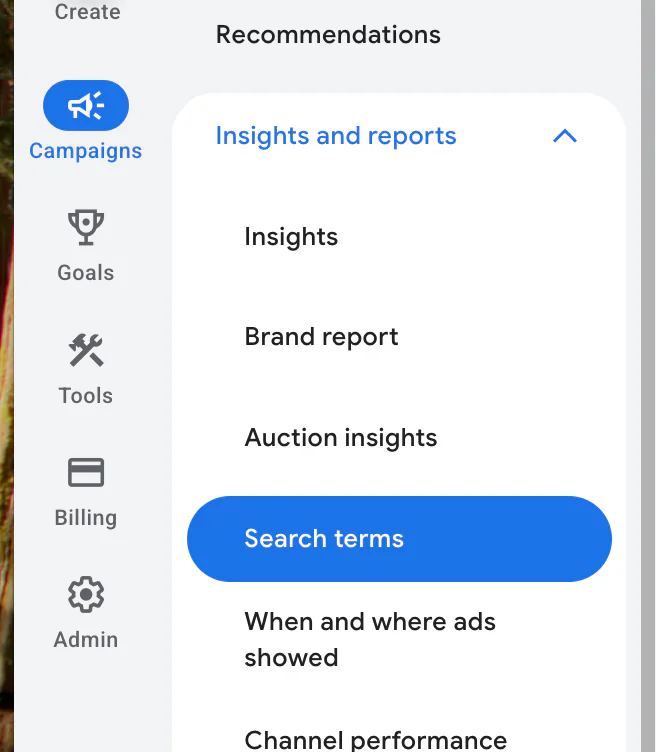
Here, you will be able to see the search terms that have triggered your adverts.
Search terms are the actual words that people have typed into Google before seeing or clicking on your ad. These can sometimes be different from the keywords you have added to your campaign, particularly if you are using broad or phrase match keywords.
At the top of the page, you can choose the date range you want to review.
I normally recommend looking at either the last seven days or the last 30 days. This is especially useful if you have recently made quite a few changes to the account, as the most recent search terms are likely to be the most relevant to your current setup.
If you look at too large a date range, you may end up reviewing searches that appeared before your latest campaign changes.
Why Can Some Search Terms Be Missing?
The report is useful, but it is not a complete record of every query. Google omits some low-volume searches to meet its privacy standards, so the visible rows may not add up to all your campaign clicks or conversions.
Google’s search terms guidance explains the difference between the report and search terms insights. Insights group searches into themes, including some queries that are not shown individually.
Performance Max also has a search terms report. Filter to the campaign you want to review, rather than assuming that search terms are available only for standard Search campaigns.
What Information Can You See?
Within the search terms report, you will see different performance statistics, including:
Impressions
Clicks
Cost
Conversions
Conversion rate
Cost per conversion
You can use these figures to help decide whether a search term is relevant and whether it is producing results.
For example, a search term may have generated a lot of clicks and spent a reasonable amount of money without producing any conversions. If the term is not particularly relevant to your business, it may be worth excluding.
However, you should not make decisions entirely based on the numbers.
You should also read through the searches and ask yourself whether they match what your business actually offers.
Sometimes a search term may not have spent much money yet, but it is clearly unrelated to your product or service. In that situation, there is normally no reason to keep paying for it.
How to Filter Search Terms by Campaign or Ad Group
If you have several campaigns running, looking at every search term in the account can become overwhelming.
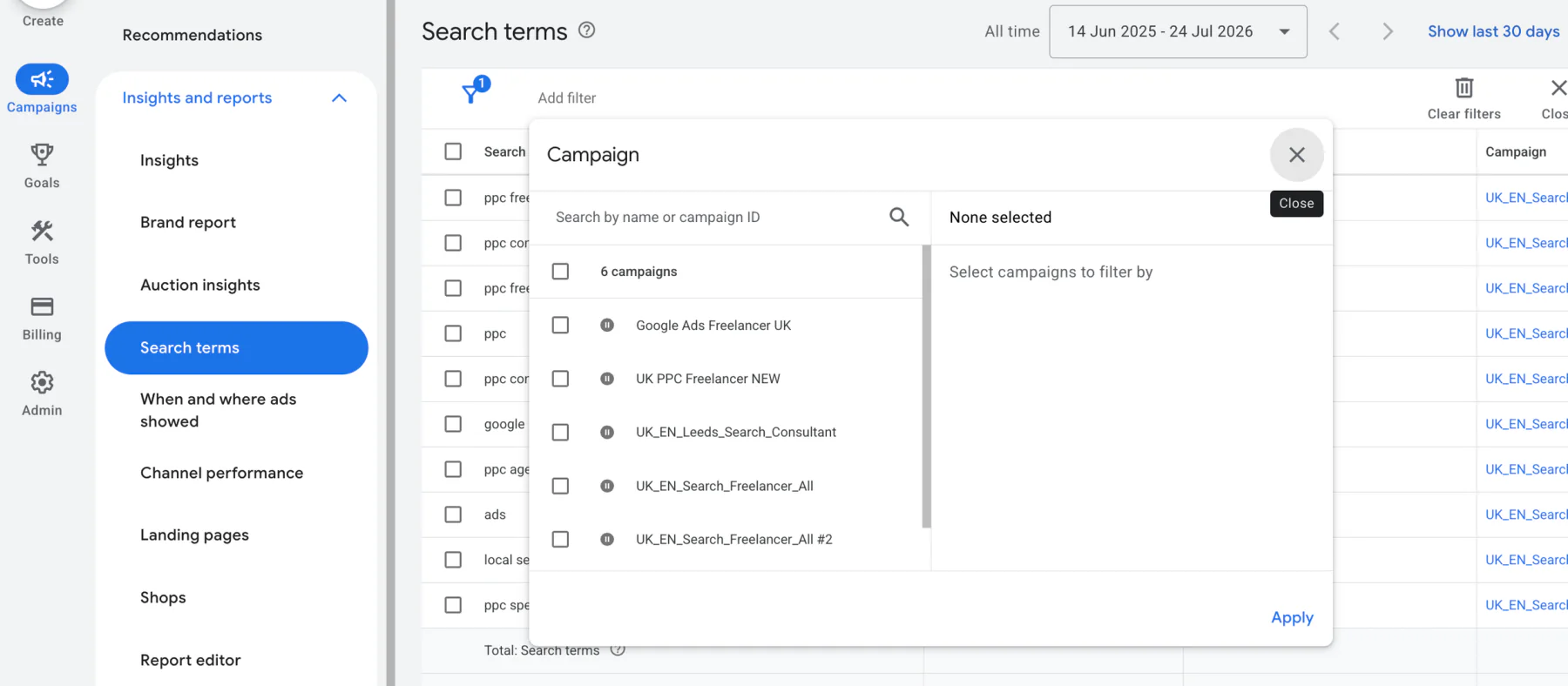
To narrow the results down, click the filter option at the top of the search terms report.
From here, search for Campaign and select the campaign you want to review.
You can do the same thing with ad groups by selecting the Ad group filter and choosing the relevant one.
This is useful when different campaigns or ad groups promote different products and services. A search term that is relevant to one campaign may be completely unsuitable for another.
You can also filter the report using the search term itself.
For example, if you think searches containing words such as “jobs”, “free” or “how much” may be appearing, you can enter those words into the filter and quickly find any matching searches.
How to Improve Your Google Ads Using Search Terms
The main reason for checking your search terms is to make sure your budget is going towards the right people.
You want to remove searches that are not important to your business and prevent Google from continuing to show your ads for them.
One area to look at is branded searches.
If you have created a campaign specifically to attract new customers, you may not want that campaign spending money on people who are already searching for your company by name.
The point of the campaign is to grow your business and reach people who have not found you yet.
In this situation, you can add your company name as a negative keyword. This prevents the non-brand campaign from appearing for searches that include your brand.
However, if you intentionally run a separate brand campaign, you should leave those searches available within that campaign. The important thing is making sure your brand and non-brand traffic are being handled separately.
How to Add a Search Term as a Negative Keyword
The quickest way to block an unwanted search is directly through the search terms report.
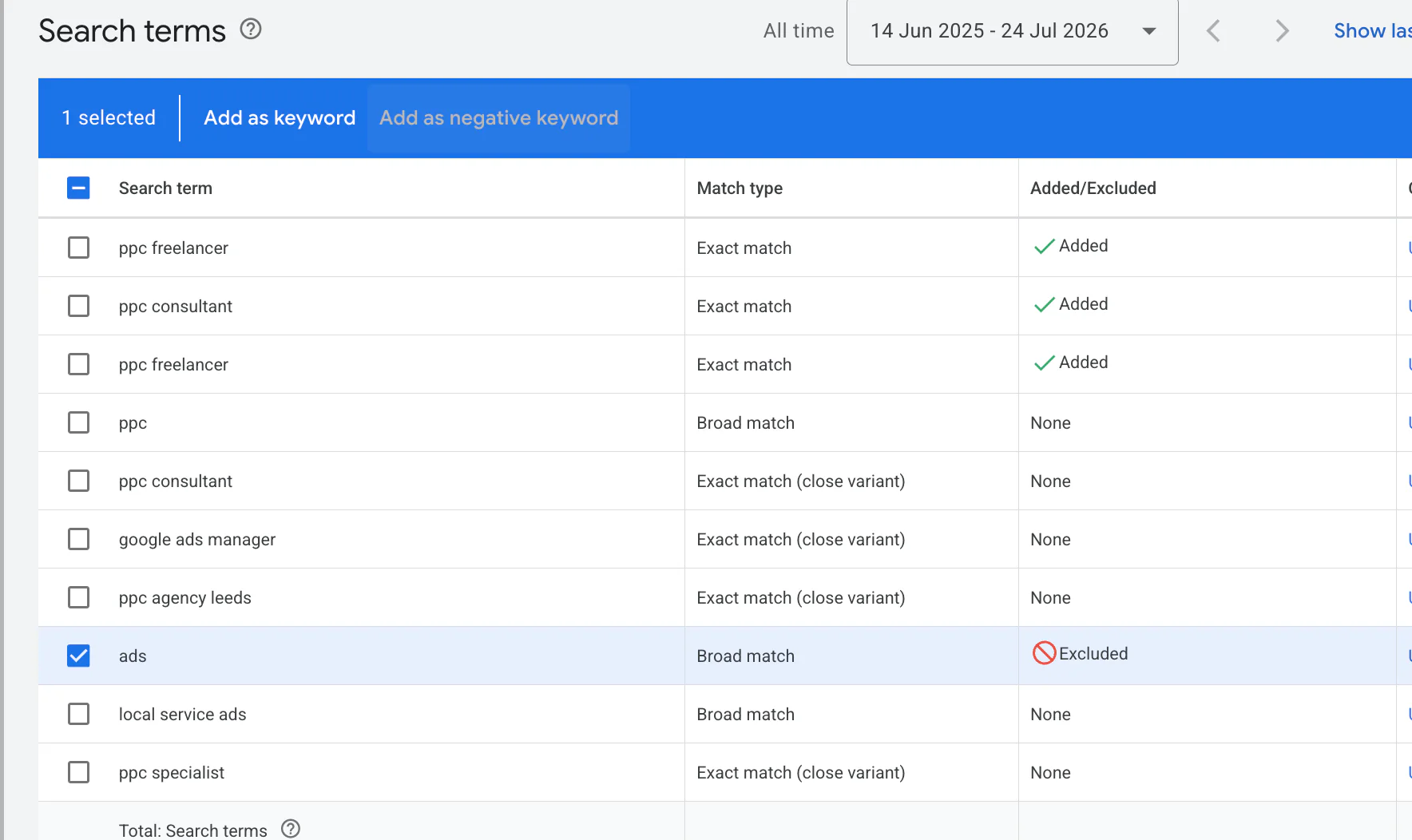
Find the search term you do not want your adverts to appear for and select the box next to it.
You can then click Add as negative keyword and follow the steps shown by Google Ads.
You will normally need to choose whether the negative keyword should apply at campaign or ad-group level.
A campaign-level negative keyword blocks the search across the whole campaign.
An ad-group-level negative keyword only blocks it from triggering adverts within that particular ad group.
Make sure you select the correct option before saving the change.
I have also written a separate guide explaining how to check and add negative keywords in Google Ads.
Exact vs Phrase Match Negative Keywords
You also need to decide which negative keyword match type to use.
An exact match negative keyword only removes that specific search.
For example:
[ads]
This would block that exact search, without necessarily blocking every other search containing similar words.
Phrase match is broader.
For example:
“how much”
Adding this as a phrase match negative keyword can prevent your advert from appearing for searches containing that phrase.
This can be useful if you are seeing lots of informational searches that are unlikely to become customers.
However, be careful when adding broader negative keywords. A word or phrase that looks irrelevant on its own may also appear within valuable searches.
Always check the other search terms containing that phrase before excluding it.
If you need more information about the different formats, you can read my guide on how to change keyword match types in Google Ads.
How Often Should You Check Search Terms?
How often you should check your search terms depends on how much you are spending and how much traffic the campaigns receive.
For a new campaign, I recommend checking them regularly because Google may still be working out which searches are relevant.
For an established campaign, reviewing the report every week or every couple of weeks is normally a good starting point.
Accounts with larger budgets may need to check more often because unwanted searches can spend money much more quickly.
The aim is not to add hundreds of negative keywords without thinking. It is to regularly remove searches that are clearly wasting budget while allowing Google enough room to find new customers.
Conclusion
Checking your search terms is one of the simplest ways to improve a Google Ads account.
To find them, go to:
Campaigns → Insights and reports → Search terms
From there, you can review the searches across your whole account or filter them by campaign and ad group.
Look at the performance statistics, but also read the actual searches and decide whether they match what your business offers.
If you find irrelevant searches, you can select them and add them as negative keywords directly from the report. Over time, this can reduce wasted spend and help more of your budget go towards people who are genuinely interested in your product or service.
If you are interested in professional PPC management or would like someone to check where your Google Ads budget is being wasted, feel free to get in touch through my contact page. I would be happy to take a look.