

Negative keywords are a crucial part of any successful Google Ads account.
They help prevent unnecessary spend by stopping your ads from showing for irrelevant searches and guide your budget towards people who are more likely to make a commercial purchase. If you are not actively checking and managing your negative keywords, you may be paying for clicks that will never convert.
If you are wondering where to find your negative keywords in Google Ads, the steps below will show you exactly how to do it.
Where to Find Negative Keywords in Google Ads
To view your negative keywords, log in to your Google Ads account and follow these steps:
Click on Campaigns in the left hand menu
Select Audiences, keywords, and content
Click on Keywords
At the top, select Negative keywords
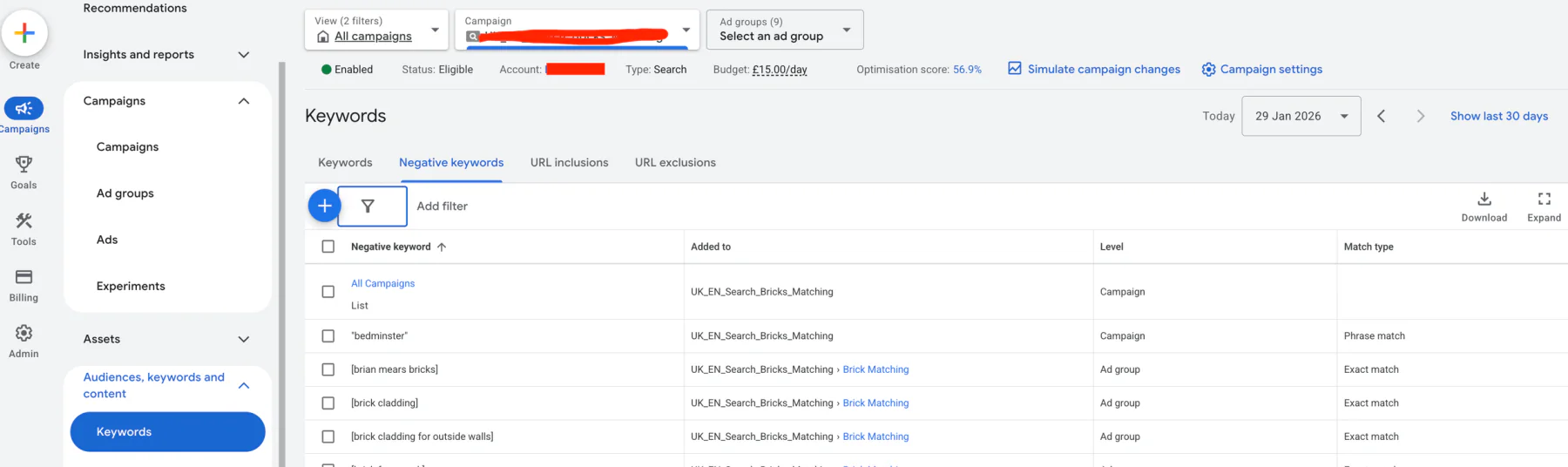
You will now see a full list of all negative keywords within your account. This view allows you to see the level at which each negative keyword is applied, whether campaign or ad group. You can also see the match type, such as broad, phrase, or exact.
This overview is useful for understanding how your account is structured and where exclusions are already in place.
How to Remove Negative Keywords
If you want to remove a negative keyword, the process is simple:
Tick the box next to the negative keyword you want to remove
Click Edit
Select Remove
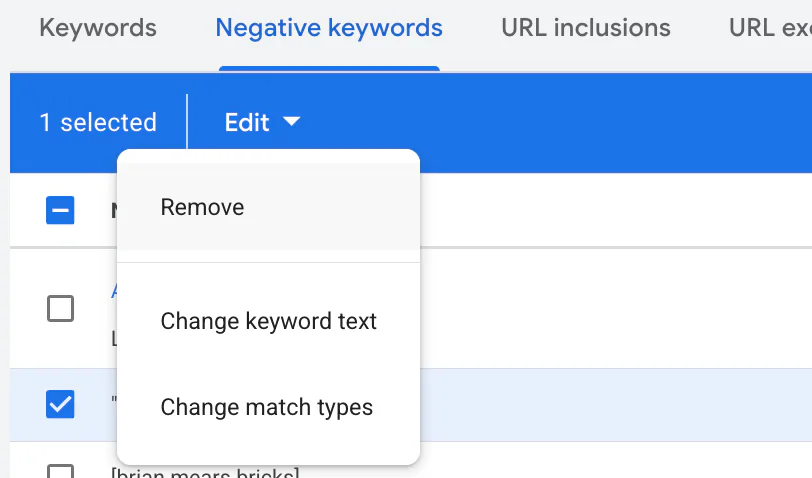
Once removed, your ads may begin showing for searches that were previously excluded, so it is always worth monitoring performance after making changes.
How to Add Negative Keywords
To add new negative keywords:
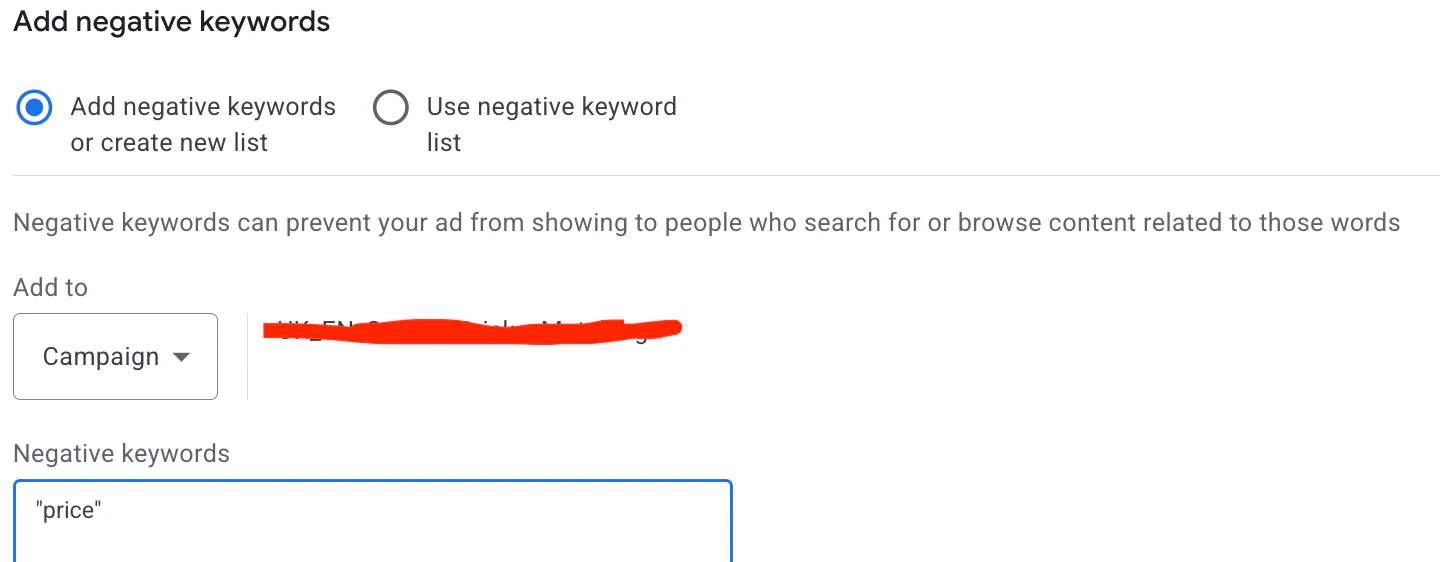
Click the plus button
Hover over it until you see Negative keywords
Click it and enter the negative keywords you want to add
Choose whether to apply them at campaign or ad group level
Adding negative keywords regularly is a great way to refine traffic quality and improve overall performance.
Finding Negative Keywords by Campaign or Ad Group
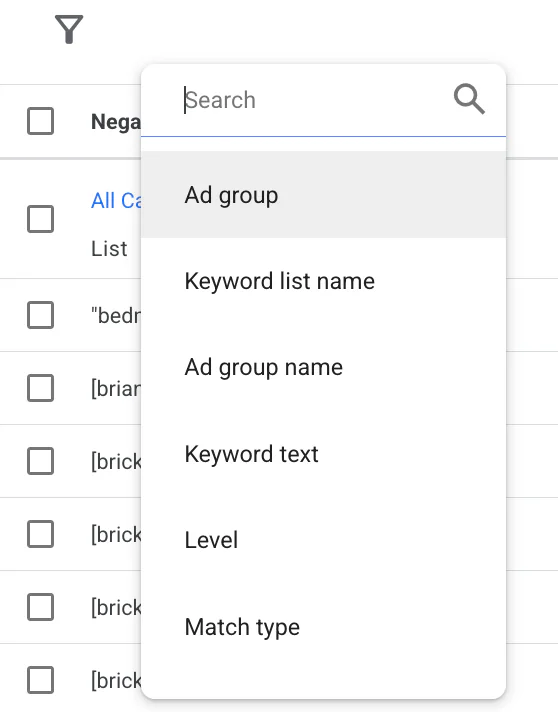
If you want to find more specific negative keywords for individual campaigns or ad groups, use the filters at the top of the table. You can filter by campaign, ad group, or other criteria to quickly narrow down your search and review only the data that matters.
This is especially helpful in larger accounts where multiple campaigns are running at the same time.
Conclusion
Negative keywords are one of the most effective ways to prevent unnecessary clicks on your ads, control spend, and drive more conversions for your business. Regularly reviewing and updating them ensures your ads appear only for searches that are relevant and likely to convert.
If you would like external Google Ads support, I help businesses worldwide with their Google Ads accounts. Simply visit my contact form and we can discuss whether ongoing support would be a good fit for you.