

If you’re running Google Ads, you might be getting enquiries at the wrong time.
This could be during the weekend while you’re not working, outside your usual opening hours, or on days when your team is not available to answer calls.
Alternatively, you might have a smaller budget and want to focus your advertising on the days that normally produce the best results.
In this blog post, I’m going to show you how to find your ad schedule in Google Ads, how to change it and a few reasons why you might want to use one.
Where to Find Your Ad Schedule in Google Ads
Finding your ad schedule is very straightforward once you know where to look.
Log in to your Google Ads account and go to:
Campaigns → Audiences, keywords and content → Ad schedule
Once you’re on this page, you can see the current ad schedules within your account, including the days and times during which your adverts are able to run.
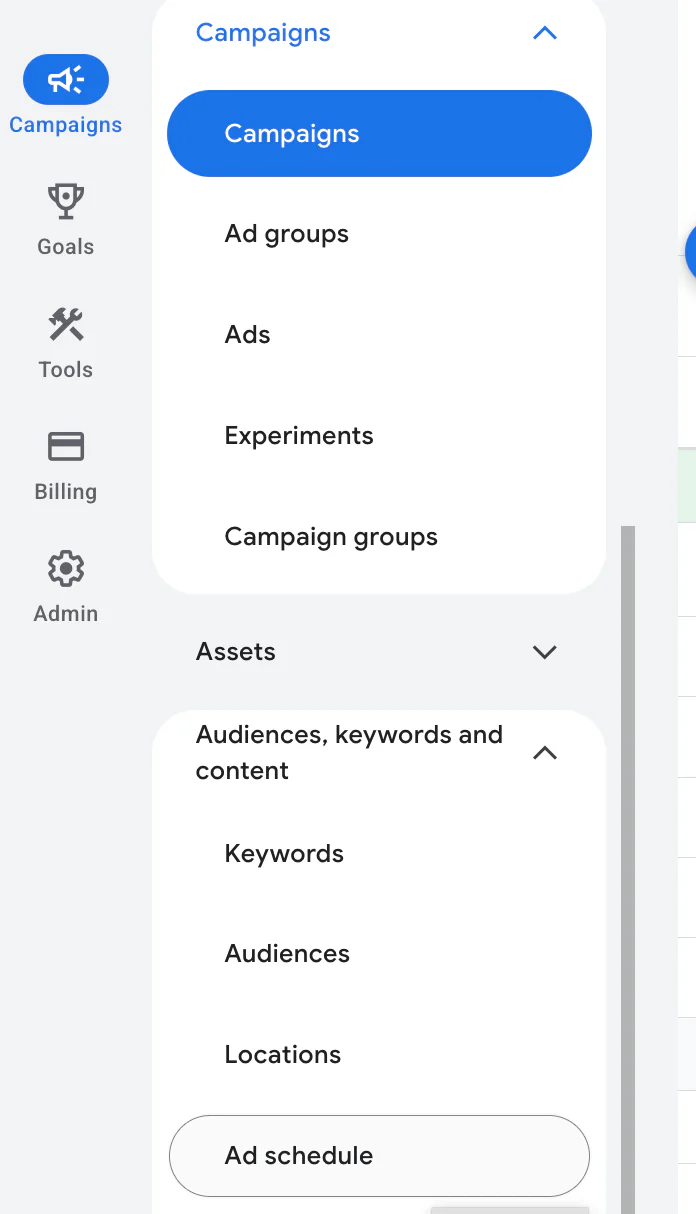
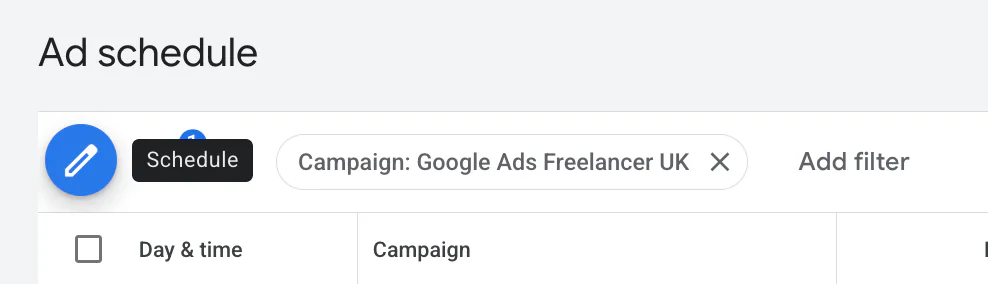
You can use the filters to narrow the results down to a particular campaign.
It is important to know that ad schedules are managed at campaign level. You cannot create a separate schedule for an individual ad group.
If different ad groups need completely different schedules, you may need to place them in separate campaigns so that you can control when each one runs.
How to Change an Ad Schedule
To change the schedule for a campaign, click the pencil button near the filters where it says Schedule.
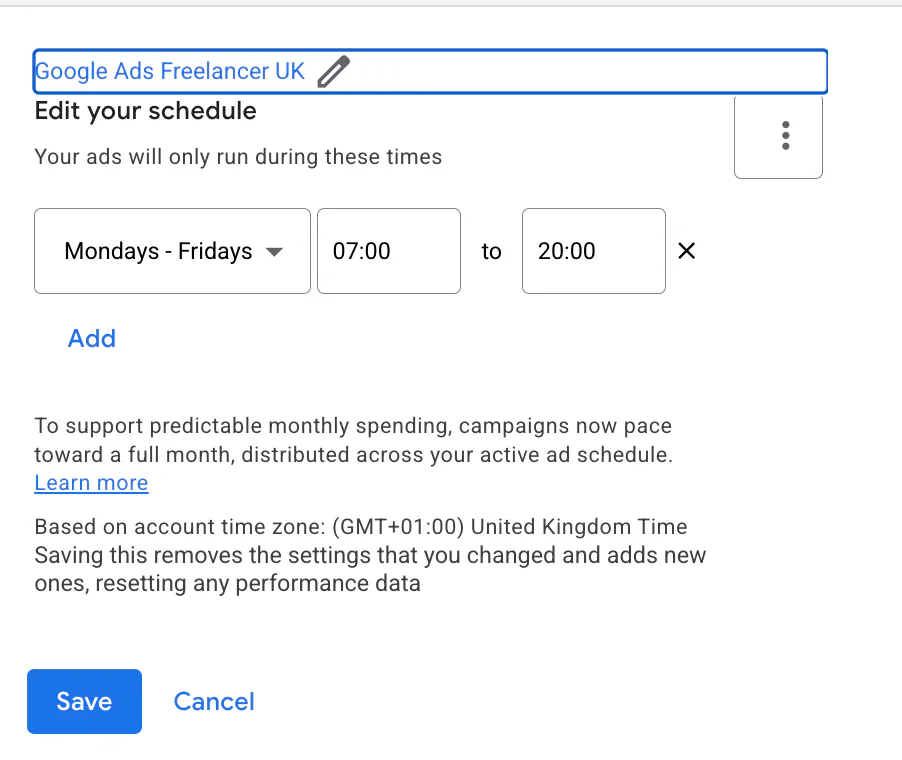
You will then need to:
Select the campaign you want to update.
Choose the days on which you want your adverts to run.
Select the start and finish times for each day.
Check that the schedule is correct.
Save your changes.
For example, you could set a campaign to run Monday to Friday between 9am and 5pm.
You can also create different hours for different days. If your business closes earlier on a Friday, for example, you can give Friday a separate finishing time.
Remember that changing one campaign does not change the schedule across your entire account.
If you have several campaigns and want all of them to follow the same hours, you will need to update each campaign separately.
Always check which campaign you have selected before saving. You do not want to accidentally restrict a campaign that should continue running throughout the week.
Why Would You Change Your Ad Schedule?
There are several reasons why changing your ad schedule might make sense.
You Have a Smaller Budget
If your budget is limited, you may not want to spread it across every hour of every day.
You might find that most of your enquiries arrive on particular days or during certain hours. Focusing your budget on those periods could help you generate more useful traffic without increasing your overall spend.
Before restricting your schedule, look at the data already available in your account. Try to avoid switching days off based purely on assumptions.
If a particular day has spent money but generated very few enquiries over a reasonable period, it may be worth testing a reduced schedule.
You Run a B2B Business
Many B2B customers work from Monday to Friday, which can make weekends less valuable for some campaigns.
People may still search for your services on a Saturday or Sunday, but they could be researching rather than being ready to make an enquiry.
If your data shows that weekend traffic spends money without producing suitable leads, you could test running the campaign on weekdays only.
However, this will not apply to every B2B business. Some people research suppliers over the weekend and submit an enquiry ready for Monday morning.
Check your results before excluding weekends completely.
You Want to Avoid Out-of-Hours Calls
If phone calls are an important source of leads, you may want your adverts to run only while someone is available to answer them.
For example, if your team works from 9am until 5pm, you can set the campaign to run during those hours.
This can be especially useful for businesses where customers expect an immediate response.
That said, you may still receive useful contact-form enquiries outside working hours. Make sure you understand how people normally contact your business before switching evening traffic off.
Your Business Has Different Opening Hours
Your opening hours may change depending on the day.
You might operate later during the week, close early on a Friday or have reduced weekend hours.
Google Ads allows you to create separate time periods for each day, so your campaign does not need to follow the same schedule throughout the week.
Check Your Account Time Zone
Your schedule follows the Google Ads account’s time zone, which may be different from your customers’ local time. Check this before setting office hours, especially if you advertise internationally.
If you want to advertise across midnight, create separate time periods for each day. For example, Monday 11pm to Tuesday 7am needs a Monday period ending at midnight and a Tuesday period starting at midnight. See Google’s scheduling instructions.
A schedule controls when ads are eligible to show. It is separate from a schedule bid adjustment: Smart Bidding generally handles auction-time bids itself while still following the campaign’s chosen days and hours.
If missed calls are the issue, you can also schedule the call asset while leaving useful website and form traffic available outside office hours.
Things to Check Before Changing Your Schedule
Before changing anything, I recommend checking:
Which days produce the most conversions
Your cost per conversion by day
Whether leads arrive through calls or forms
When your team is available to respond
Whether the campaign has enough data to support the decision
Whether other campaigns also need updating
Do not restrict a campaign too heavily just because it had one quiet week.
Performance can change due to seasonality, demand and other factors. Use a reasonable date range and give the new schedule enough time before deciding whether it has worked.
If you need help putting these checks into practice, my Google Ads management service can help you review the account and decide what to work on next.
Conclusion
Setting an ad schedule in Google Ads is very easy.
Go to:
Campaigns → Audiences, keywords and content → Ad schedule
Click the pencil button, select the campaign and choose the days and times during which you want your adverts to run.
Remember that schedules are applied at campaign level, not ad-group level. Updating one campaign will not automatically change any of the others in your account.
Ad schedules can be useful if you have a smaller budget, operate during specific hours or find that certain days produce much better enquiries.
However, always check your account data before restricting when your adverts can appear. What sounds sensible in theory may not always produce the best results.
If you are interested in professional PPC management or would like help making better use of your advertising budget, feel free to get in touch through my contact page.