

You can change a conversion between primary and secondary in Google Ads through Goals → Conversions → Summary → Edit goal.
This guide shows where to find the setting, how to save it and what to check afterwards. If you need help deciding which actions belong in each category, start with the difference between primary and secondary conversions.
1. Identify the Conversion You Want to Change
Start with the action’s name and what it measures. Similar names can hide very different events: a form submission, a contact-page visit or a phone-button click.
Changing this setting changes how an existing action is used. It does not create a new conversion or repair the tag that records it.
For example, if you want an enquiry form to be the main result and a contact-page visit to provide supporting information, identify both actions before editing. Check their sources too, especially if the same event is recorded through both a website tag and Google Analytics.
2. Open the Conversion Summary
Select Goals, then Conversions → Summary. Find the goal containing your conversion action.
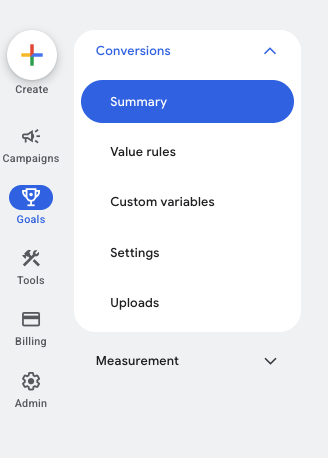
Expand the relevant goal if needed and look for the action you identified. The Action optimisation column shows its current setting.

3. Edit the Conversion Action Optimisation
Select Edit goal for the goal containing the action. Expand Conversion action optimisation and use the dropdown beside that action.
Choose Primary to make it eligible for bidding when its standard goal is selected, or Secondary (observe only) to use it for observation by default. Then save.
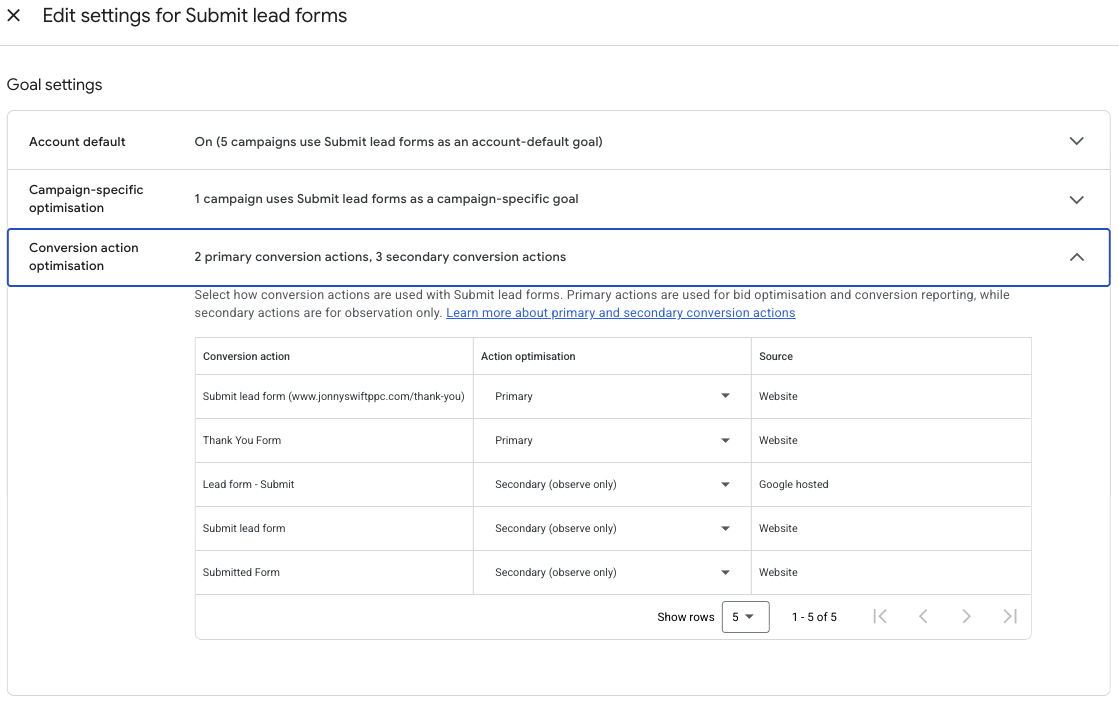
Google documents this route in its conversion goals guide. Some actions have restrictions on how their optimisation setting can be edited.
4. Confirm the Saved Setting
Return to Summary and check the Action optimisation column. Confirm that you changed the right action, particularly if several have similar names.
You can change Google Analytics conversion action optimisation in Google Ads. Changing a key event in Analytics is not a substitute for checking this Google Ads setting.
5. Check the Campaign’s Conversion Goals
Open the relevant campaign’s settings and review its conversion goals. Establish whether it uses account-default goals or campaign-specific goals, and whether the goal containing your action is selected.
A primary action is normally used for bidding only when its standard goal is included. Marking it primary alone does not make every campaign optimise towards it.
There is also an exception worth checking: secondary actions included in a custom goal can be used for bidding when a campaign uses that custom goal. Google explains this in its primary and secondary conversion documentation.
6. Review Your Reporting
Use Conversions and All conversions to understand the result. Secondary actions normally remain available in All conversions, so moving an action to secondary does not mean you have stopped tracking it.
Segment by conversion action when reviewing the figures. A combined total can conceal which event is being recorded.
Record when you made the change. If you remove a frequent, low-value action from the campaign’s bidding goals, the reported conversion total and CPA may change even though the number of genuine enquiries has not changed in the same way.
What If the Results Still Look Wrong?
Check for duplicate actions, the wrong campaign goal or a tag firing before the desired result is completed. Use the conversion tracking test guide to check the event itself.
The classification, campaign goal and tracking event need to agree. Saving a dropdown change is only one part of that check.
If you would like help checking your account settings, you can request a free Google Ads audit.