

You’ve added your sitelinks, saved the changes and checked your advert on Google. But the links underneath it are missing.
It’s frustrating, particularly when you’ve spent time choosing the right pages and writing the descriptions. However, it doesn’t automatically mean you’ve set them up incorrectly.
Adding a sitelink makes it available to show. It does not guarantee Google will display it with every advert.
In this guide, I’m going to explain the checks I would make before changing anything, starting with whether the sitelinks are actually missing from the campaign or just missing from the search you’ve done.
Do Sitelinks Show Every Time Your Advert Appears?
No. Google decides which assets to show for each search. An eligible sitelink can still be left out when Google predicts it won’t improve performance.
So if you see your advert without sitelinks once, I wouldn’t immediately rebuild the ad. Check the account data first.
This guide is about the links underneath paid adverts. If you mean the extra links underneath an organic Google result, those are handled separately. My guide to what a sitelink is in Google Ads shows the paid version.
1. Check Whether the Sitelinks Have Impressions
Go to Campaigns → Assets and select Sitelink. Choose the relevant campaign and a date range that includes time after you added the links.
Look at the impressions. If a sitelink has impressions, it has appeared during that period, even if you haven’t personally seen it.
For a new setup, I would give the report time to collect useful activity rather than keep searching for the advert myself. Also check that the campaign itself is receiving impressions. If the main advert isn’t appearing, the sitelinks have nothing to appear alongside.
My guide on checking whether your Google ad is running covers that wider problem.
2. Check the Status of Each Sitelink
Look for anything paused, under review or disapproved. Open the status details and read the reason before editing it.
If Google has flagged a destination problem, open the final URL yourself. Does it reach the page you intended? Does that page work on a phone? If the link points to an old offer or a deleted collection, correct the destination rather than sending everyone to the homepage.
For policy issues, follow the explanation shown in the account. Google’s sitelink requirements are a useful reference when reviewing the text and destinations.
3. Make Sure the Sitelinks Are Attached to the Right Campaign
A sitelink can exist in the account without being available to the campaign you’re checking.
In Assets, use the Associations view to check where it is attached. Look at the account, campaign and ad group rather than just the link text.
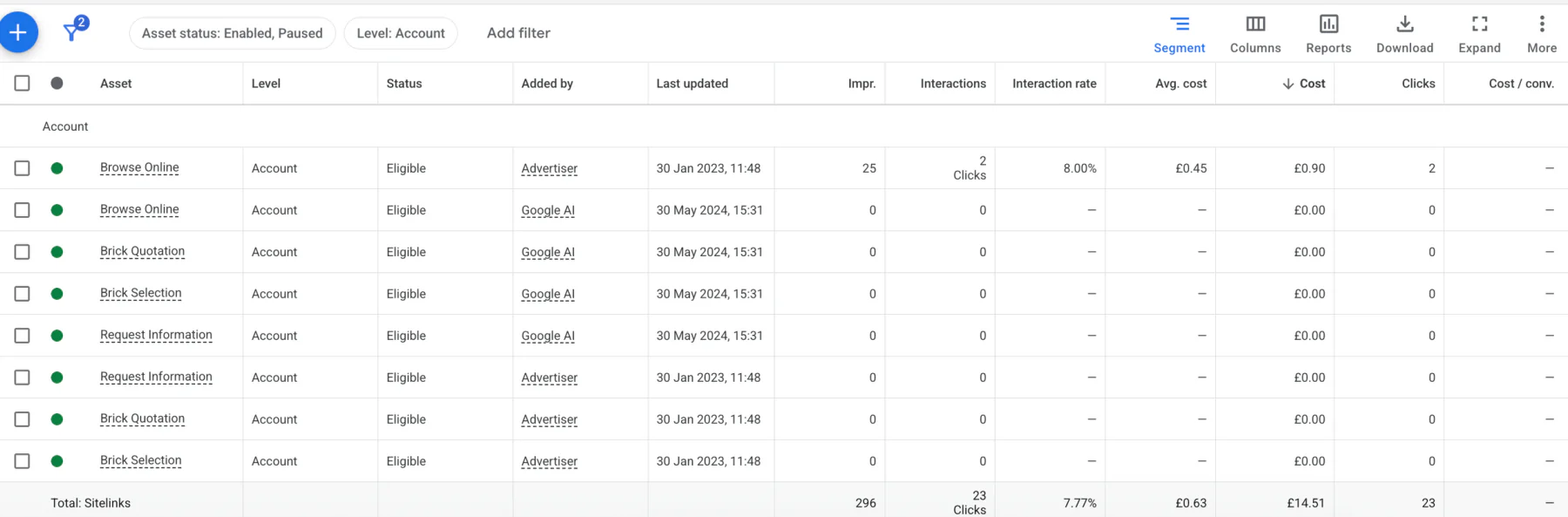
For example, if you have separate campaigns for bathroom fitting and kitchen fitting, a sitelink attached only to the kitchen campaign won’t be available to the bathroom campaign.
Account-level links can be available more widely. Campaign and ad group links let you be more specific, and eligible links from different levels within the same branch can appear together. Don’t assume adding an ad group sitelink automatically blocks every account-level link.
If you need the editing steps, here’s where to find and edit sitelinks in Google Ads.
4. Check Dates, Schedules and Duplicate Links
Open the sitelink’s advanced options and check its dates and schedule. A link for an expired promotion or one scheduled outside your advert’s running hours may explain the gap.
Also look at whether you’ve created several links saying almost the same thing. Google won’t serve sitelinks with the same or very similar text together.
I would use distinct, useful destinations. For a shoe shop, that might be Boots, Trainers, Sandals and Delivery Information, provided those pages exist and fit the campaign. Four variations of “Shop Now” don’t give the customer much choice.
5. Give Google Enough Relevant Options
For Search ads, at least two eligible sitelinks are needed for sitelinks to appear. I would aim to provide four to six useful links where the website supports them, with descriptions that explain what someone will find.
That doesn’t mean creating weak links just to reach a number. If you only offer one service on one page, think about whether you have genuinely useful additional destinations before adding more.
A plumber could link to boiler repairs, servicing and installation if they offer those services. A link to a completely unrelated service would be less helpful to someone looking for a boiler repair.
6. Check Ad Rank and the Search Context
Your ad position, device and Ad Rank can affect which assets appear. If the links are eligible and correctly attached, visibility can still differ between searches.
I would review how closely the keyword, advert and landing page match before raising bids. Paying more for every click just to chase a larger advert needs a better reason than “I want all my links to show”.
If the campaign is producing good enquiries at a sensible cost, one search without sitelinks is a weak reason to change it.
Why Are My Sitelink Descriptions Missing?
The link text can appear without the description lines. Writing descriptions makes additional formats possible, but doesn’t force Google to show that larger layout.
Check whether the link itself has impressions before treating a missing description as a serving problem.
What Would I Check First?
I’d start with impressions, status and associations. Those checks help separate a real setup problem from Google choosing a different layout for one search.
Then review schedules and the quality of the links. Once the setup is right, monitor the results rather than repeatedly changing assets that are already serving.
Google’s sitelink guidance covers the serving rules and account levels, while its asset guidance explains the role of Ad Rank.
If you’d like me to take a look at your Google Ads setup, get in touch. I’ll help you work out what needs attention and what you can leave alone.