

If you're running Google Ads and not using sitelinks properly, you're leaving performance on the table.
When clients ask me where to find sitelinks in Google Ads, it's usually because they know they matter, but they are not quite sure where Google has tucked them away in the interface.
Sitelinks are one of the simplest ways to improve click-through rate and help users find exactly what they’re looking for. Done properly, they streamline the customer journey and can lift both conversion rate and overall account efficiency.
In this guide, I’ll walk you through:
Where to find sitelinks at campaign level
How to edit, add or remove them
How to view account-level sitelinks
What to be careful about before making changes
Why Sitelinks Matter for Performance
Before we get into the mechanics, it’s worth understanding why sitelinks are so powerful.
They allow you to:
Send users to specific service pages
Highlight offers or promotions
Direct traffic to contact pages
Pre-qualify visitors before they click
In my experience managing campaigns across multiple industries, strong sitelinks can:
Improve click-through rate
Increase conversion rate
Improve Quality Score over time
Lower cost per acquisition
They essentially give users shortcuts. And the easier you make it for someone to find what they want, the more likely they are to convert.
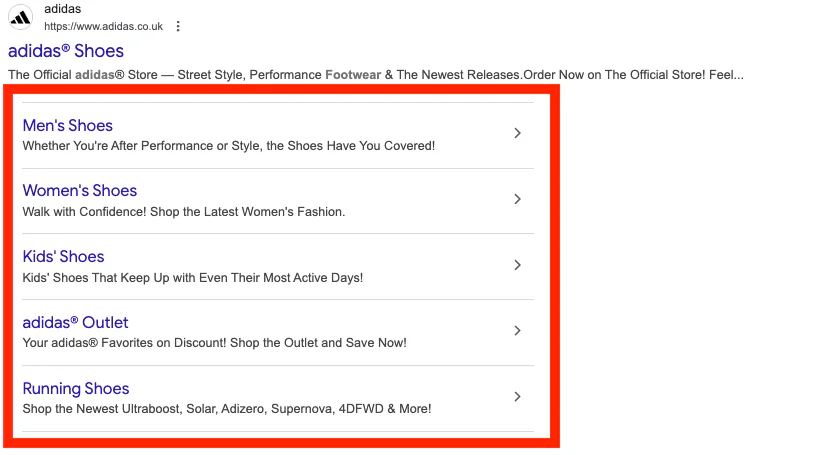
Where to Find Sitelinks in Google Ads (Campaign Level)
Let’s go through this step-by-step.
If you want to find and edit sitelinks within a specific campaign:
Step 1: Go to Campaigns
Log in to your Google Ads account
Click on Campaigns
Step 2: Click the Campaign You Want
Select the campaign you want to work on
Click into the relevant ad group
Step 3: Click on Ads
On the left-hand side under the campaign section, click Ads.
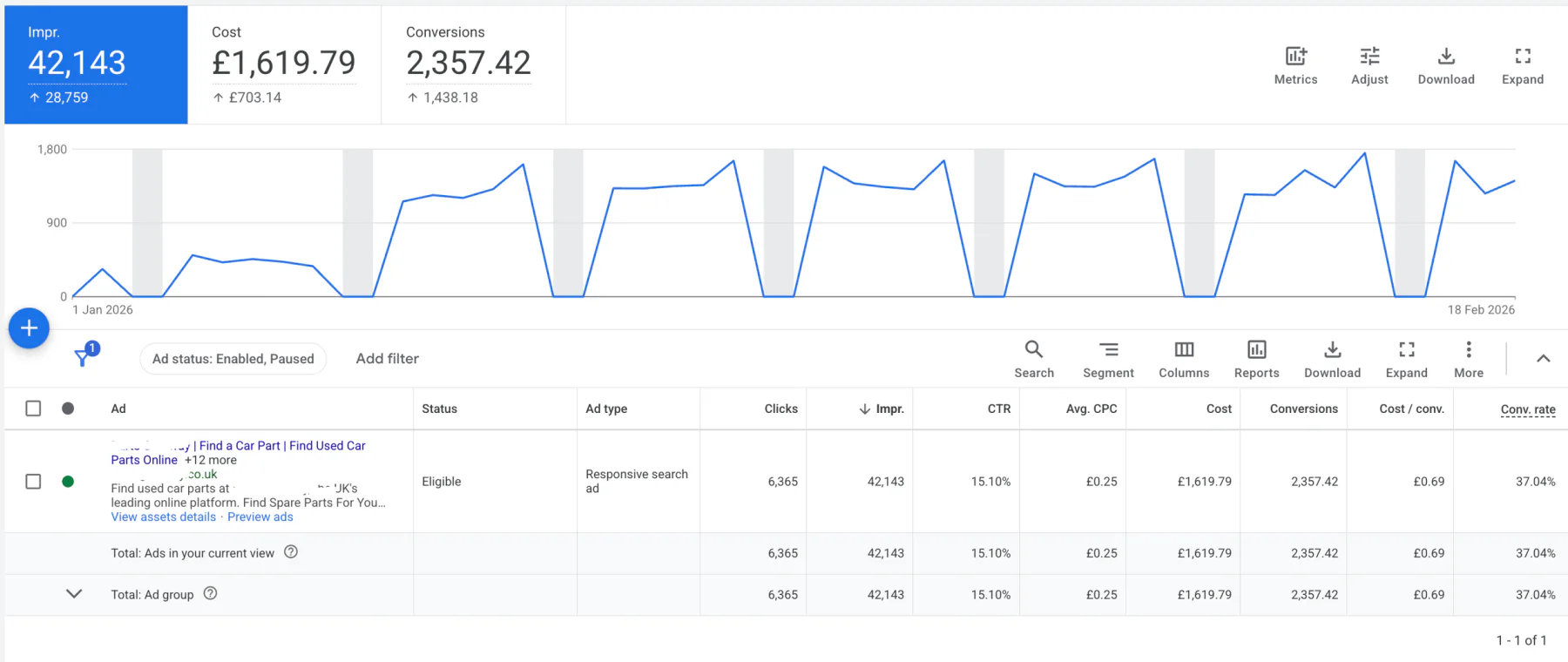
Here you should see your ads within that campaign.
Step 4: Edit the Ad
Go to one of your ads
Click on Edit
Scroll down until you see the section called Sitelinks
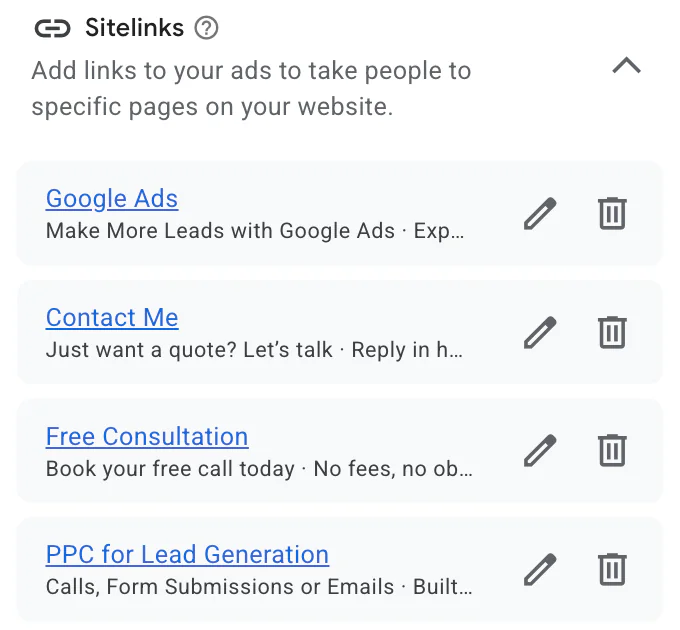
This is where you can:
Add sitelinks
Edit existing ones
Remove sitelinks
It’s quite straightforward:
Click the pencil icon to edit or add
Click the bin or trash icon to remove
Once finished, click Save
Important Disclaimer
When you change a sitelink at campaign level, it updates across the entire campaign.
It does not just change for one ad or one ad group.
So please be mindful. Any edit you make will apply to all ads within that campaign. I’ve seen businesses accidentally remove high-performing sitelinks across dozens of ads without realising it.
Always double-check before saving changes.
How to Find Account-Level Sitelinks
Now let’s look at account-level sitelinks.
These are sitelinks that apply across multiple campaigns.
Step 1: Go to Campaigns
Click into Campaigns again.
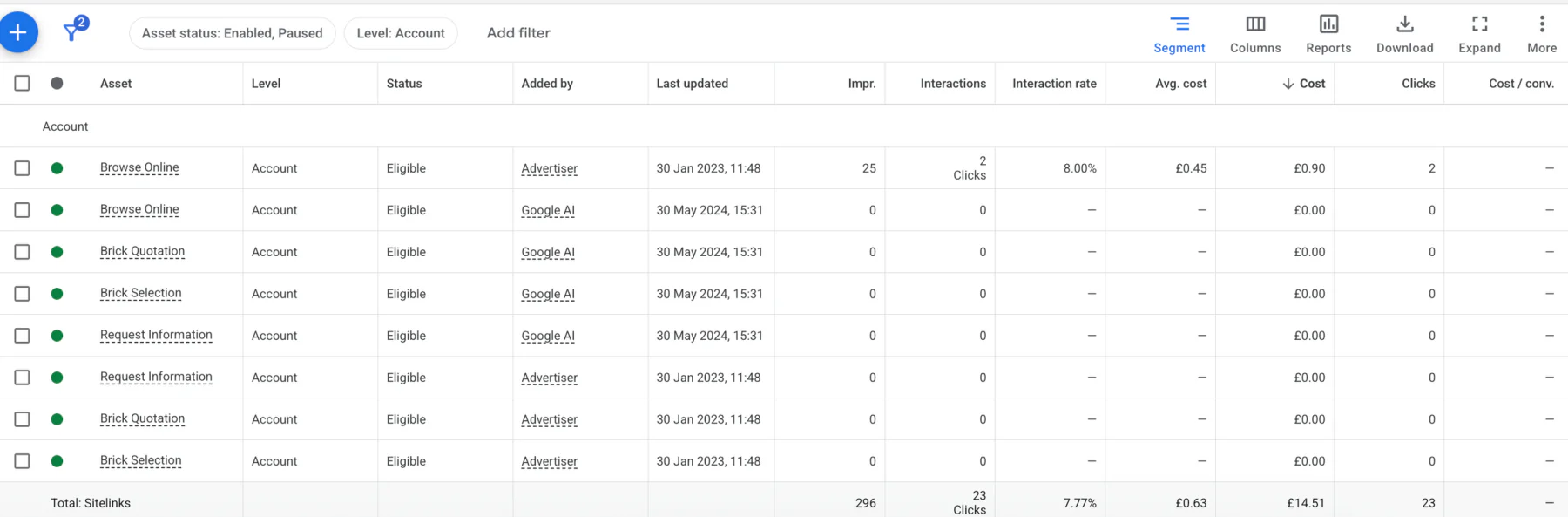
Step 2: Scroll to Assets
On the left-hand menu, scroll down and click on Assets.
At the top, use the filter to select Sitelink.
Here you should see all your sitelinks, including their performance data.
Step 3: Filter by Level
To find account-level sitelinks specifically:
Click Add filter
Find the option called Level
Click on it
Select Matches any → Account
Remove any other selections
Now you’ll see only your account-level sitelinks, if you have them set up.
It’s worth noting that account-level sitelinks are not suitable for every business. Many businesses have different services, offers, or messaging per campaign. In those cases, campaign-level sitelinks are often more effective.
Should You Use Campaign or Account-Level Sitelinks?
This depends on your structure.
Account-Level Sitelinks Work Well When:
Your messaging is consistent across campaigns
You promote the same core services
You want quick standardisation
Campaign-Level Sitelinks Are Better When:
Campaigns target different services
Landing pages vary significantly
You’re testing offers
You want tighter control over performance
Personally, I prefer campaign-level sitelinks in most cases. They give you more control and allow you to align messaging tightly with the intent of that specific campaign.
Final Thoughts
Finding sitelinks in Google Ads is actually very simple once you know where to look.
Campaign level → Campaign → Ads → Edit → Sitelinks
Account level → Campaigns → Assets → Filter by Level
Sitelinks are one of the easiest ways to increase click-through rate and improve conversion rate without increasing budget. They help guide users, streamline the journey, and improve overall account performance.
Just remember: any changes at campaign level affect the entire campaign. Always check before saving.
If you're interested in professional PPC management to grow your business, feel free to get in touch via my contact page at jonnyswiftppc.com/contact. I'd be happy to discuss how PPC can work for you.
Related Google Ads Guides
You can also improve your adverts by learning more about sitelinks, call assets and descriptions: