

The Display Network is a setting in Google Ads that can easily waste a portion of your budget without you realising it. When enabled, your search ads can appear across websites, apps and placements that are often low intent and poorly aligned with your campaign goals.
As a digital marketing consultant with years of experience managing Google Ads, I recommend that most advertisers turn this setting off. Doing so helps push more of your budget into high-intent search traffic, where users are actively looking for what you offer.
Below is exactly how to turn off Display Network in Google Ads, step by step.
How to Turn Off Display Network
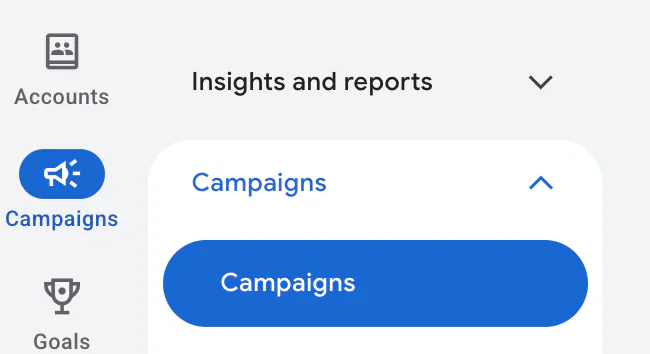
1. Go to Your Campaigns
Log into your Google Ads account and click Campaigns from the left-hand menu.
2. Select the Campaign and Open Settings
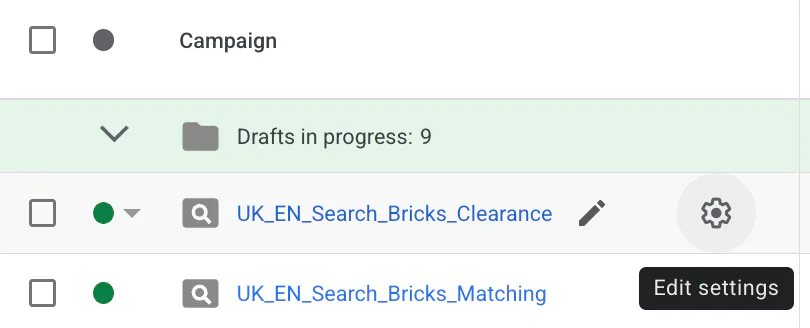
Scroll down and click on the campaign you want to switch off the Display Network for. Then click on the cog icon (Settings) and select Edit settings.
3. Open Networks
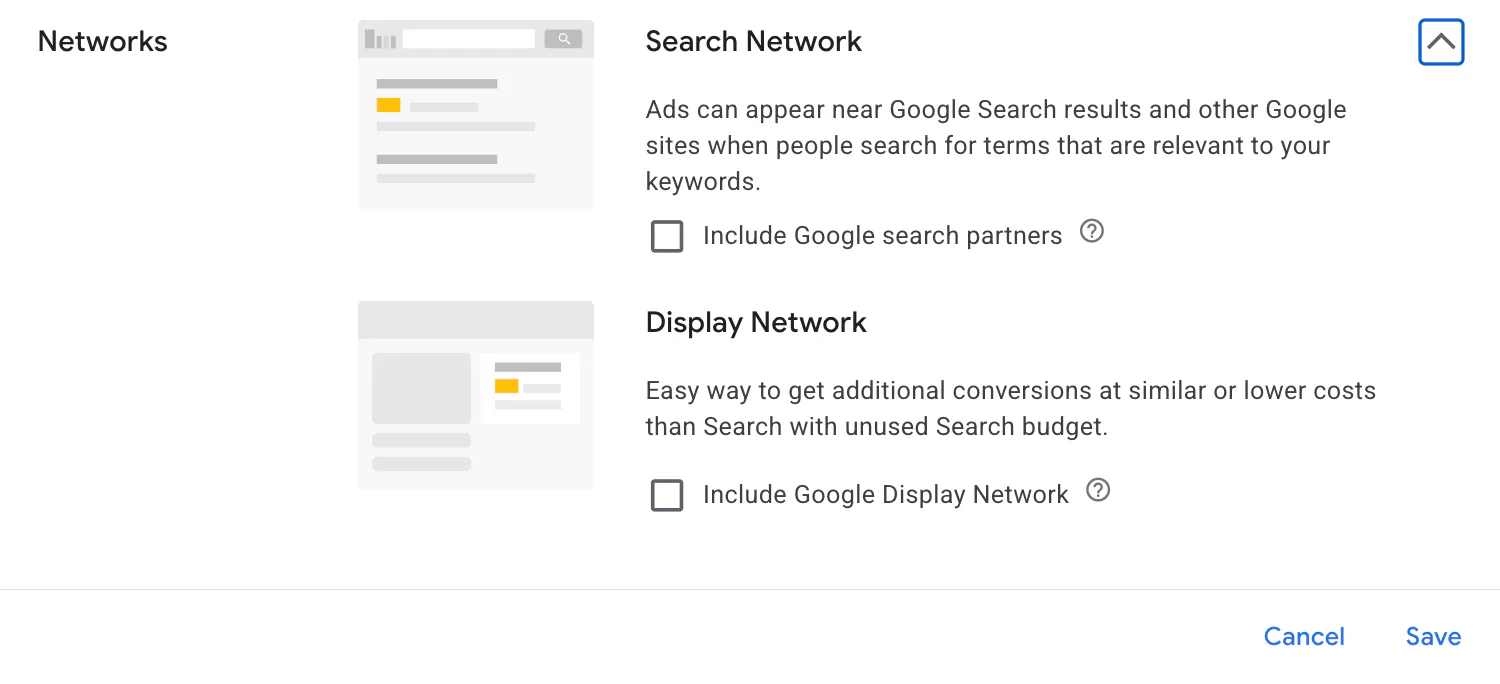
In the settings menu, scroll until you see Networks and click on it.

4. Untick Display Network
You will now see Display Network.
If this box is ticked, it means it is currently turned on.
To turn it off, simply untick the box and then click Save.
Once saved, you have successfully turned off the Display Network for that campaign. Your budget will now be focused purely on search traffic.
By switching off the Display Network settings, you can save money on your Google Ads campaigns and ensure more of your spend is going towards high-intent search users who are actively looking for your services.
If you are wanting to make the most out of your Google Ads, I have helped plenty of B2B and B2C clients drive their ads into profitability. If you are interested, you can set up a 30-minute chat with me via the Contact Me page.
Related Google Ads Guides
These guides cover some other Google Ads settings that can affect where your adverts appear and how your campaigns perform: