

You might be collating your invoices together and want to find out exactly where you can download your Google Ads invoice.
It’s not always immediately obvious where Google stores these documents inside the platform, especially if you don’t regularly use the billing section.
In this guide, I’ll show you exactly where to find and download your Google Ads invoice quickly and easily.
By the end of this post, you’ll know precisely where to look and what to do if you can’t access the invoice section.
Why You Might Need a Google Ads Invoice
There are several common reasons businesses need to download their Google Ads invoice.
The most common ones I see include:
1. Your Business Requires It
If you work within a company, finance teams often require invoices to reconcile marketing spend.
Google Ads costs need to be recorded properly, especially when budgets are monitored across multiple channels.
2. Your Accountant Needs It
Accountants typically request invoices for bookkeeping and tax purposes.
Keeping your Google Ads invoices organised makes it easier during:
End-of-year accounting
VAT reporting
Expense tracking
3. You Want to Track Your Advertising Spend
Sometimes you simply want a clear record of how much you’ve spent on advertising.
Downloading your invoices allows you to:
Monitor total ad spend
Track monthly advertising costs
Keep records outside the platform
It can sometimes be difficult to remember exactly where these invoices are located inside Google Ads, but the process is actually very straightforward once you know where to look.
Where to Find Your Google Ads Invoice
To download your invoice, follow these simple steps.
Step 1: Go to Your Google Ads Account
Log into your Google Ads account as normal.
Step 2: Navigate to Billing
In the top navigation menu, go to:
Billing
Then select:
Step 3: Locate Your Invoice
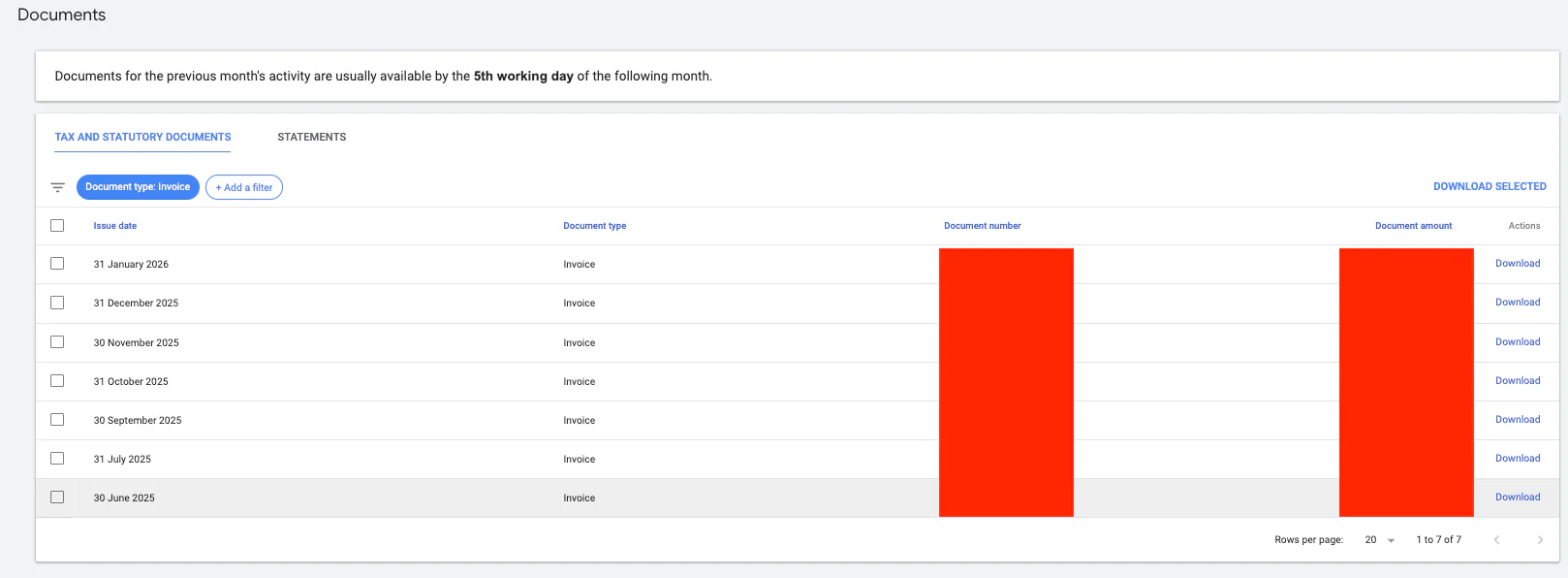
Once you open the documents section, you’ll see a table showing all available billing documents.
This usually includes information such as:
Issue date
Document type
Document number
Document amount
On the far right-hand side of the table, you’ll see an Action column.
Inside this column is a Download button.
Step 4: Download the Invoice
To download the invoice, simply click Download.
The invoice will then be saved to your computer as a PDF.
It’s a very quick process once you know where the documents section is located.
If You Can’t See the Invoice Section
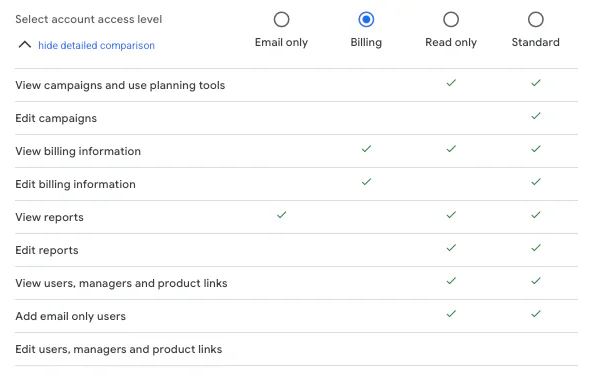
If you can’t access the billing documents page, the issue is usually related to user permissions.
Not every user on a Google Ads account automatically has access to billing information.
Check Your Access Level
Ask the account admin to review your permissions.
They can do this by:
Going to Admin
Opening Access and Security
Editing your user permissions
To view invoices, you’ll need billing access set to either:
Read-only
Standard
Once your access has been updated, you should be able to return to the billing section and download the invoices normally.
Conclusion
Downloading a Google Ads invoice is straightforward once you know where to find it.
The key steps are:
Go to Billing
Click Documents
Find the invoice
Click Download
If you can’t see the billing section, it’s usually a permissions issue that the account admin can fix in the Access and Security settings.
If you're interested in professional PPC management to grow your business, feel free to get in touch via my contact page at jonnyswiftppc.com/contact. I'd be happy to discuss how PPC can work for you.