

Callouts in Google Ads are short pieces of extra text that highlight reasons to choose your business. Think of them as little snippets of information: free delivery, a recognised qualification or a useful service benefit.
They give you another place to put your unique selling points without trying to squeeze everything into your headlines and descriptions.
In this guide, I’ll explain what callouts are, how they differ from other assets and whether you need them. I’ll also cover the basic setup, with a link to my separate screenshot guide.
What do callouts look like?
Callouts appear alongside your advert’s other text. They are short supporting points rather than another headline or a full description.
For example, a plumber might want to highlight “Gas Safe Registered” or “Fast Response”. Those details can help someone decide whether the business is right for the job.
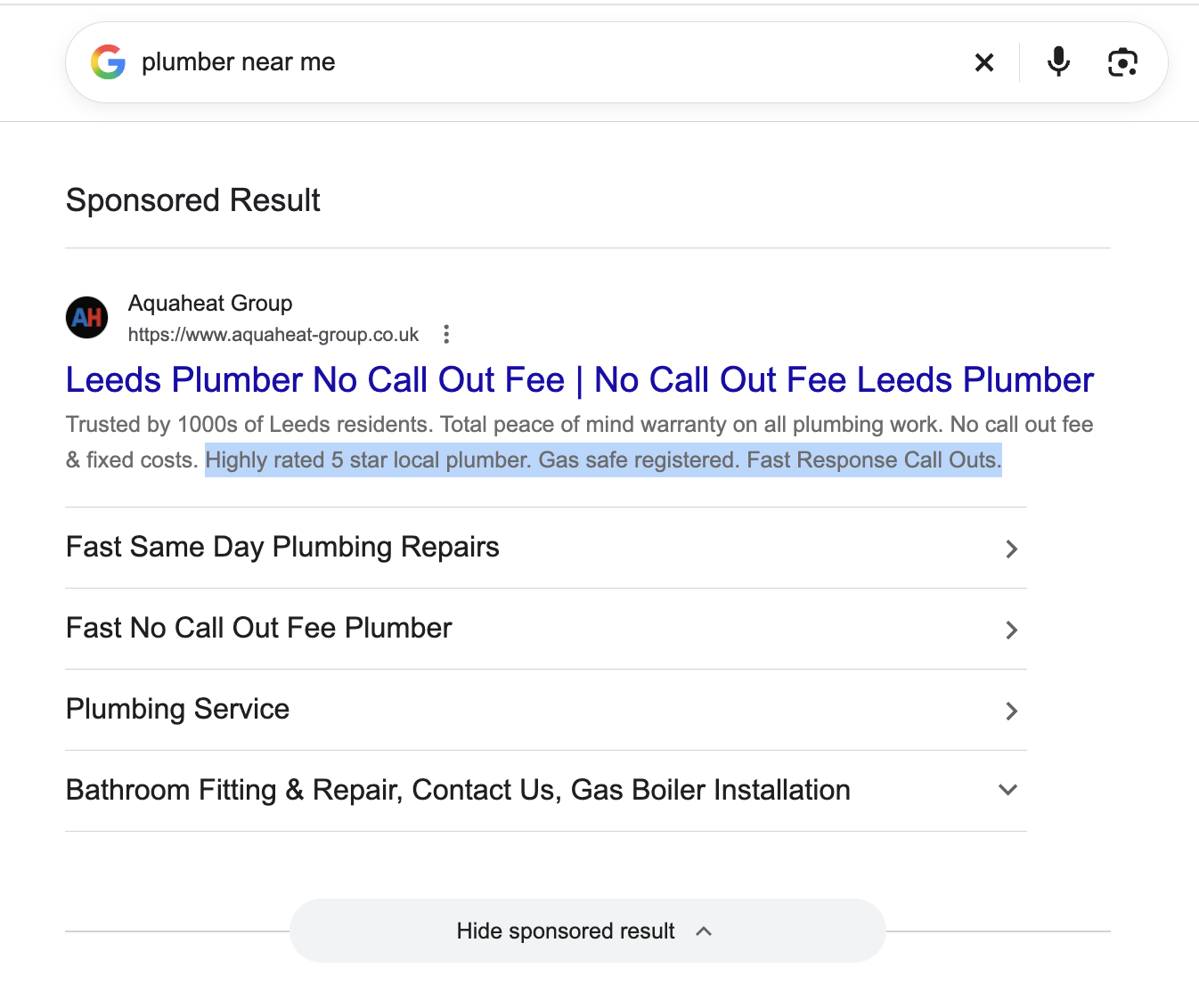
The highlighted text in this search result shows the sort of information I mean: a rating, a qualification and a response promise. A search-result screenshot alone doesn’t confirm which words came from callout assets and which came from the description. In particular, some of these phrases are too long to use as a single callout.
How many characters can a callout have?
For English ads, each callout can have up to 25 characters, including spaces. So it’s 25 or fewer, rather than fewer than 25.
Keep each one focused on a single benefit. “Free Delivery” is easier to scan than a sentence explaining your delivery service.
Examples that fit the limit include:
- Gas Safe Registered
- No Call Out Fee
- Fast Response
- Free Delivery
- Free PPC Audit Included
Only use a claim if it is accurate for your business and the service or product you’re advertising. A qualification, rating or delivery promise needs to be something you can support.
Callouts vs sitelinks and descriptions
Callouts highlight short benefits. They aren’t clickable and don’t send the reader to a separate page.
Sitelinks give people links to particular pages on your website, such as services, pricing or contact information. I cover these in my guide to what a sitelink is on Google Ads.
Descriptions give you more space to explain your offer. Callouts support that message with quick points rather than replacing the main ad copy.
Also, callouts aren’t the same as call assets. A call asset adds a phone number or calling option; a callout adds text.
Do you need callouts in Google Ads?
No. You can run a Search advert without adding callouts. Your headlines and descriptions are still the main things to get right.
However, in general I recommend using them. They’re an available feature that gives you more room to explain why somebody should choose your business.
There can be exceptions. I’ve worked with a prestigious company that was particularly careful about how its adverts looked. If extra snippets don’t fit your brand guidelines or the message you want to present, you don’t have to use them.
I wouldn’t describe callouts as a guaranteed improvement. Their usefulness depends on what you write and how well it fits the advert. My view is that relevant, specific callouts are usually worth adding.
How to add callouts: the quick version
The route I’m using is through the Search ad editor:
- Open your chosen Search campaign and go to Ads.
- Click the pencil beside the advert you want to edit.
- Scroll down and expand More asset types.
- Open Callouts and click Edit.
- Select existing callouts or choose New callout to create one.
- Check the preview, apply your selection and save.
For the screenshots and a fuller explanation, see how to add callouts in Google Ads.
Will your callouts always show?
No. Adding them makes them available to show, but it doesn’t mean every callout will appear on every advert. The preview is an example, rather than a promise of the exact live layout.
There’s no separate charge for adding a callout. You still pay for ad clicks in the usual way. You can read more in Google’s callout asset guidance.
Are callouts worth using?
Callouts are a simple way to give potential customers a few more reasons to choose you. They’re optional, but I normally recommend adding them when you have useful benefits to highlight.
Keep the wording short, make sure each claim is true and choose points that support your main advert.
If you’d like help reviewing your adverts and assets, you can request a free Google Ads audit.