

Adding callouts to Google Ads is straightforward once you know where to look. They’re a useful place to highlight your selling points, and in most cases I think you may as well use them.
This guide follows the route I use through the Search ad editor, with screenshots of each main stage. I’ll also show you the alternative Assets route if your account looks different.
Before you start: what should you put in a callout?
Callouts are short pieces of supporting text, such as “Gas Safe Registered”, “Free Delivery” or “No Call Out Fee”. They give someone quick reasons to consider your business.
If you want more context on how they work, read what are callouts in Google Ads.
For English ads, keep each callout to 25 characters or fewer, including spaces. Have a few accurate benefits ready before you open the editor.
1. Open your Search campaign and find the advert
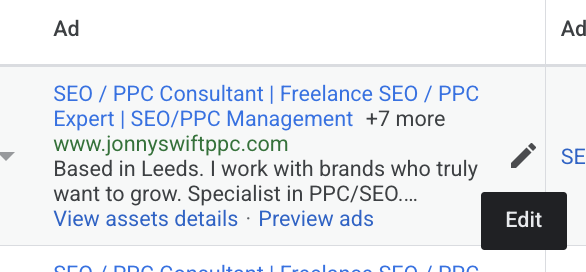
Go to the Search campaign you want to work on, then open Ads. Find the advert that is currently running, or the one you’re preparing to put live.
Click the pencil icon beside that advert to open the editor.
2. Expand More asset types
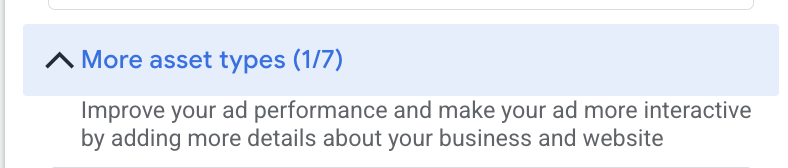
Scroll down through the ad editor until you reach More asset types. Click to expand this section.
In my screenshot the label includes “(1/7)”. Your count may differ; the section you’re looking for is More asset types.
3. Open Callouts and click Edit
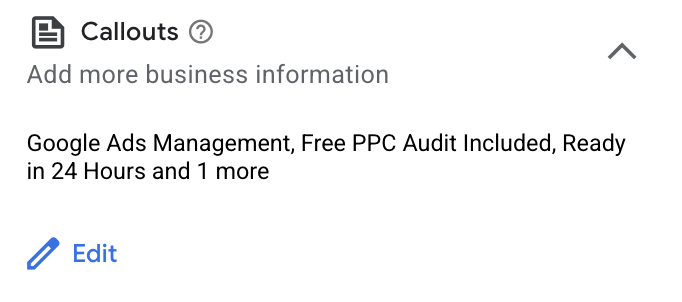
Find Callouts, expand it if needed, then click Edit.
If you already have callouts selected, you may see their text listed here. In my example, the section includes “Google Ads Management”, “Free PPC Audit Included” and “Ready in 24 Hours”.
4. Select existing callouts or create new ones
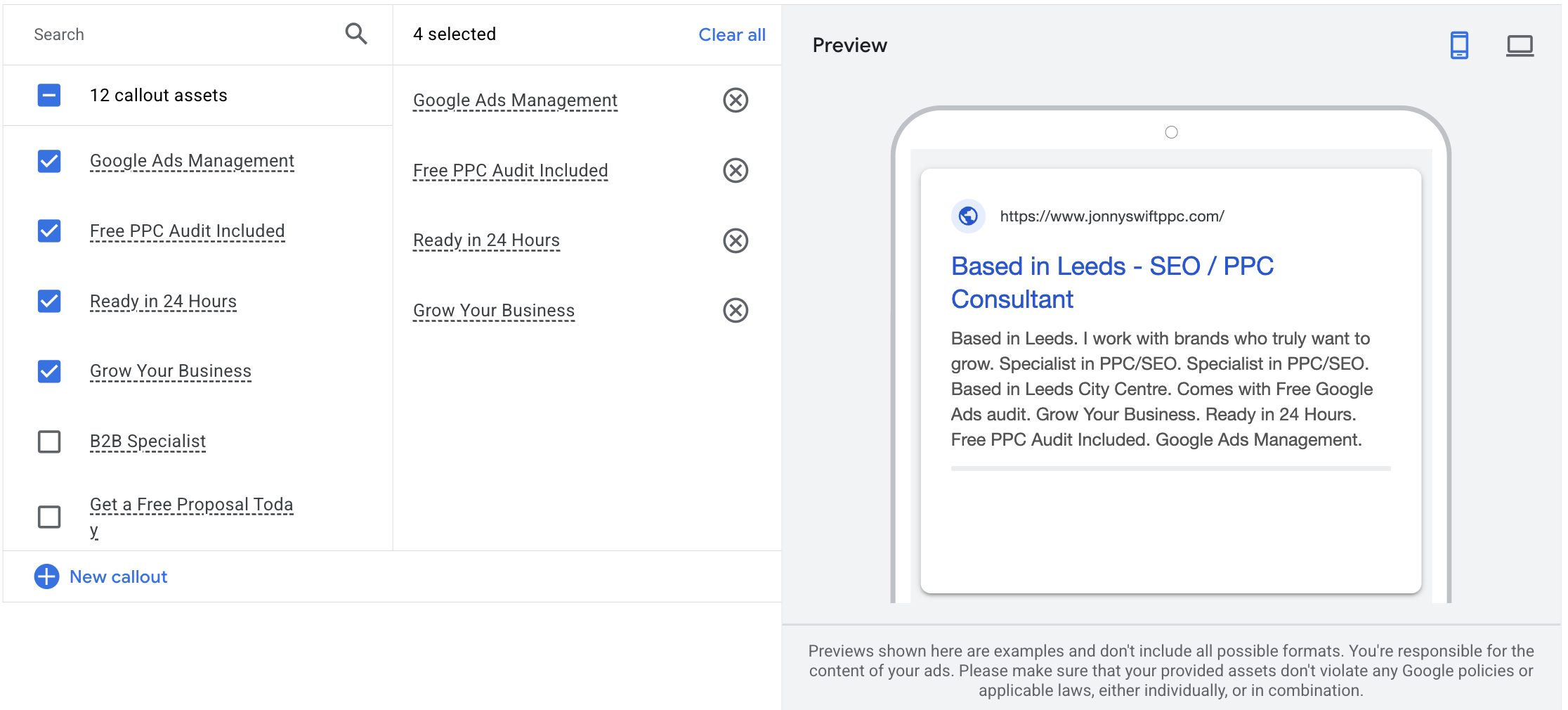
The selection screen lets you tick existing callouts on the left. The middle column shows the ones you have selected.
To add different wording, click New callout and enter the text you want to use. You can then add it to your selection.
In my screenshot, four callouts are selected. Use benefits that make sense for your own business rather than copying my wording automatically.
5. Check the preview and save your changes
Look at the preview alongside your selection. It shows how the callouts can sit with your headlines and descriptions.
Use the mobile and desktop icons to inspect the available preview formats. Check that the text is easy to read and that the selling points fit the rest of the advert.
When you’re happy, apply or save the callout selection, then save any remaining changes in the ad editor. The screenshots show the selection stage; the final button labels may vary with your interface.
The preview is illustrative. Google won’t necessarily show every selected callout, or use that exact arrangement, each time your ad appears.
Another way: add callouts from Assets
If you don’t see Callouts in the ad editor, Google’s documented route is Campaigns → Assets → plus button → Callout.
Choose whether to attach the assets at account, campaign or ad group level. Then create new text or select existing callouts and save. Check the level carefully: an account-wide benefit should apply across the business, while a service-specific promise needs a narrower scope.
Callouts are attached at those levels, rather than being text belonging only to the individual advert you opened. Keep that in mind when choosing where they should be used. See Google’s callout setup instructions for the Assets route.
What makes a useful callout?
I’d focus on details that give someone a reason to choose your business. A qualification or a clear service benefit is more useful than filling the space just because it is available.
- Keep it short. Use a quick point rather than a full sentence.
- Be accurate. Don’t promise a response time, rating or offer that you can’t support.
- Make it relevant. A delivery benefit won’t suit a campaign selling a consultation.
- Read the whole advert. Check that the extra text fits your intended message and brand guidelines.
Adding callouts is a quick job
Open your Search advert, expand More asset types, edit Callouts, choose your text and save. That’s the basic process.
In my opinion, callouts are usually worth adding because they give you another way to explain your business’s benefits. They’re still optional if they don’t fit how you want your adverts to look, and they don’t guarantee better results.
If you’d like help improving your adverts, get in touch about PPC management.